Unified Product Story
The front page is centered on the active operator console: monitor, listen, map, replay, and analyze.
This website uses cookies to improve your experience. By continuing to use this site, you agree to our Privacy Policy.
Multi-SDR Operations Console for Monitoring, SWL, Mapping, and Replay
A professional operator surface for live RF monitoring, shortwave and HF listening, 2.4/5 GHz Wi-Fi analysis, LTE analysis, decoder and mapping workflows, IQ replay, and visual spectrum analysis across RTL-SDR, Airspy HF+, LimeSDR, SDRPlay, HackRF, bladeRF, Pluto+, USRP, SpyServer, and RTL-TCP.
Khanfar RSA keeps real-time spectrum analysis, live RF control, SWL and HF listening, 2.4/5 GHz Wi-Fi analysis, LTE cell-analysis workflow, decoder workflows, map views, replay, Gamma analysis, and up to 120 FPS 2D FFT viewing on compatible GPU and display setups inside one faster surface instead of spreading the job across separate tools.
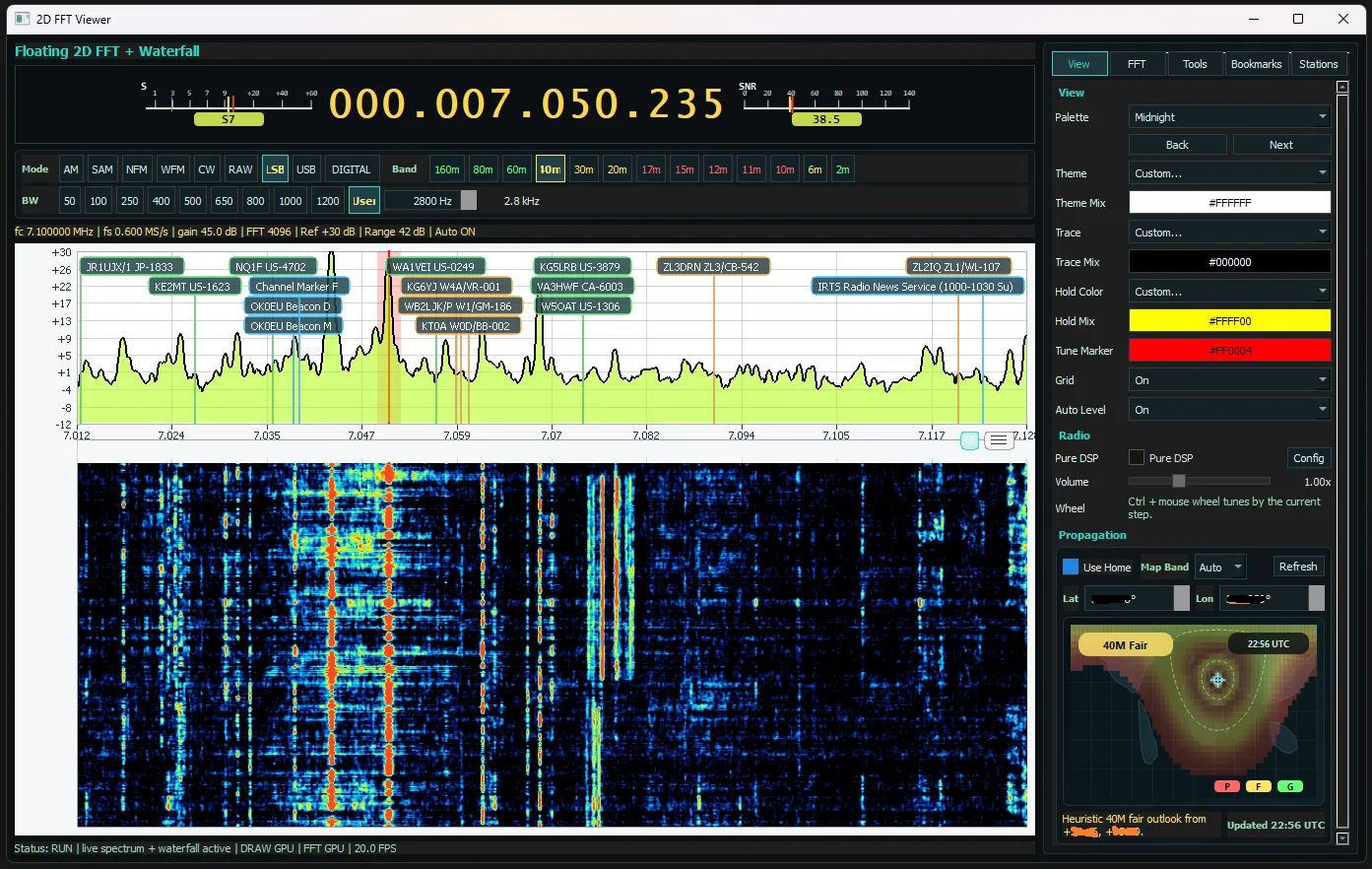
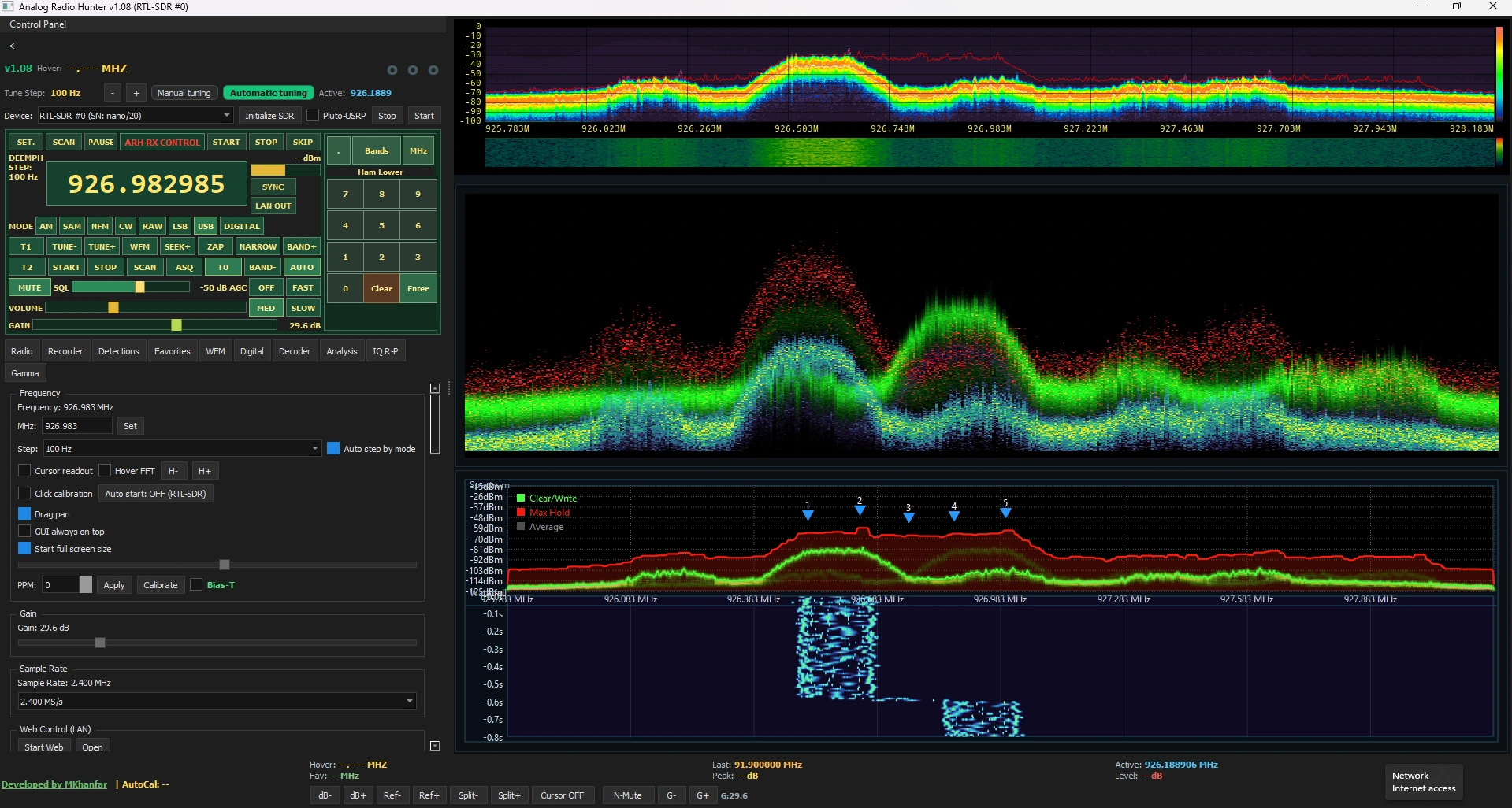
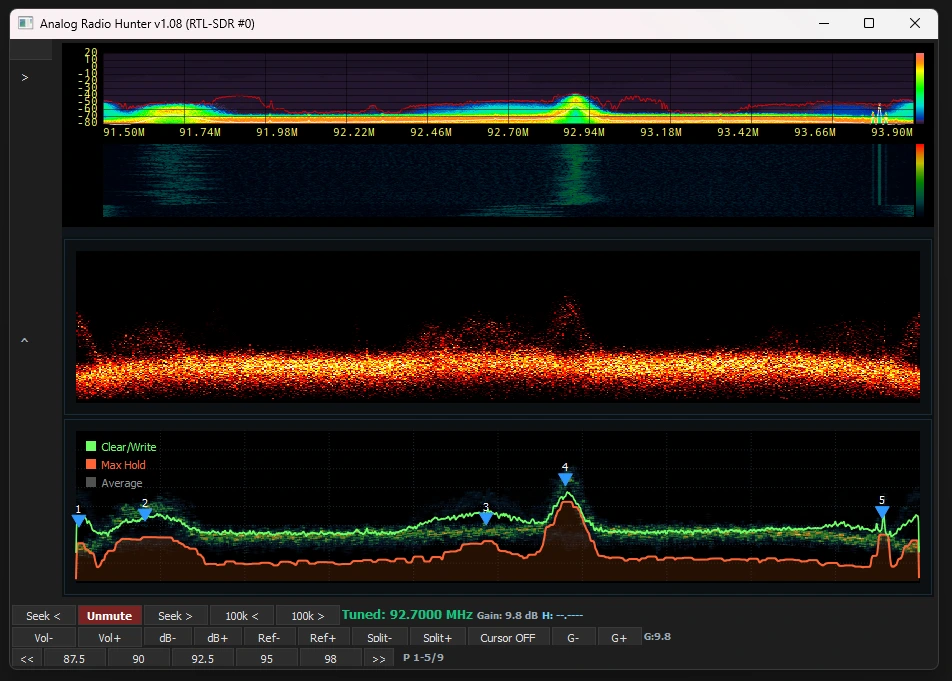
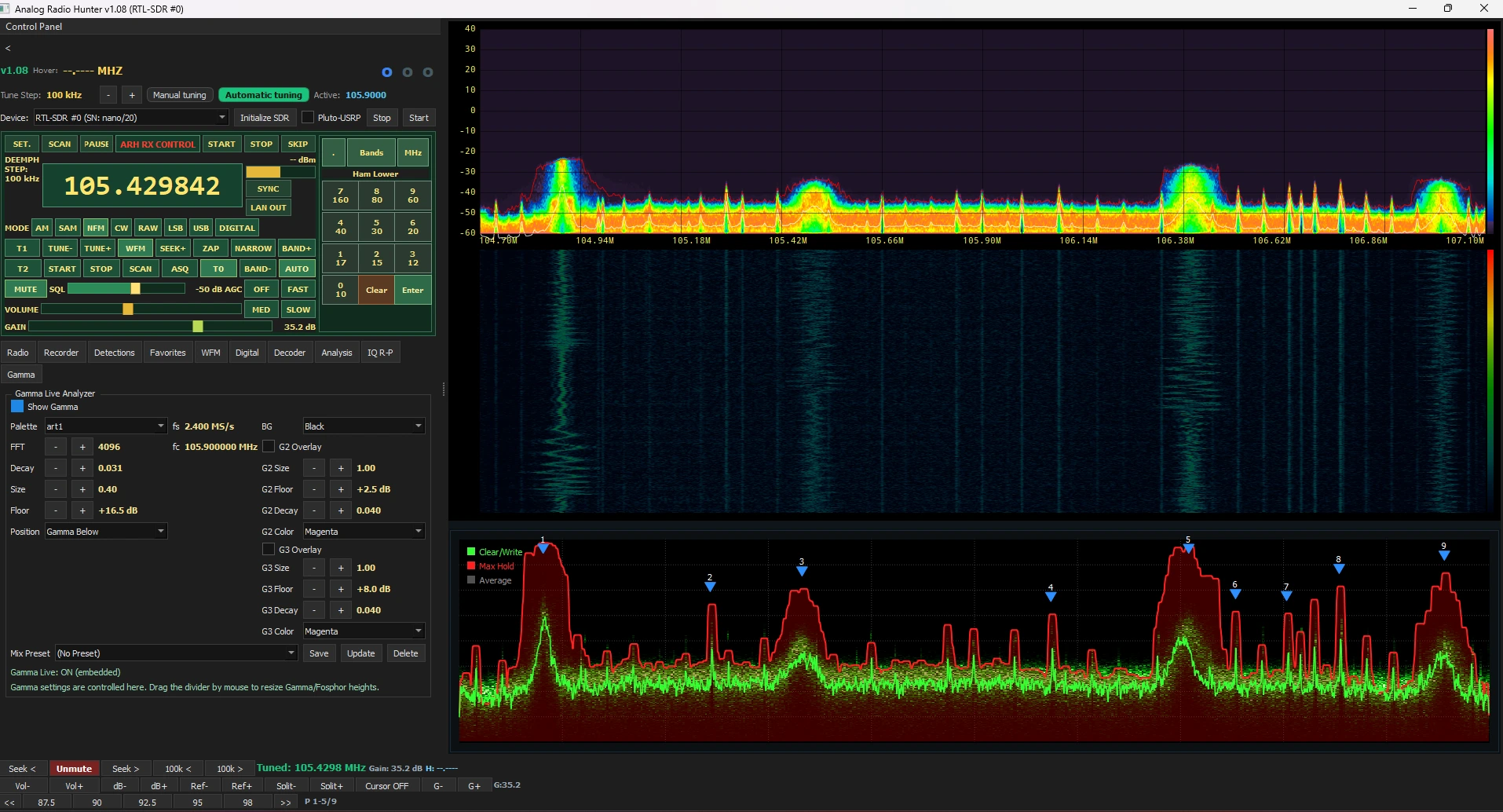
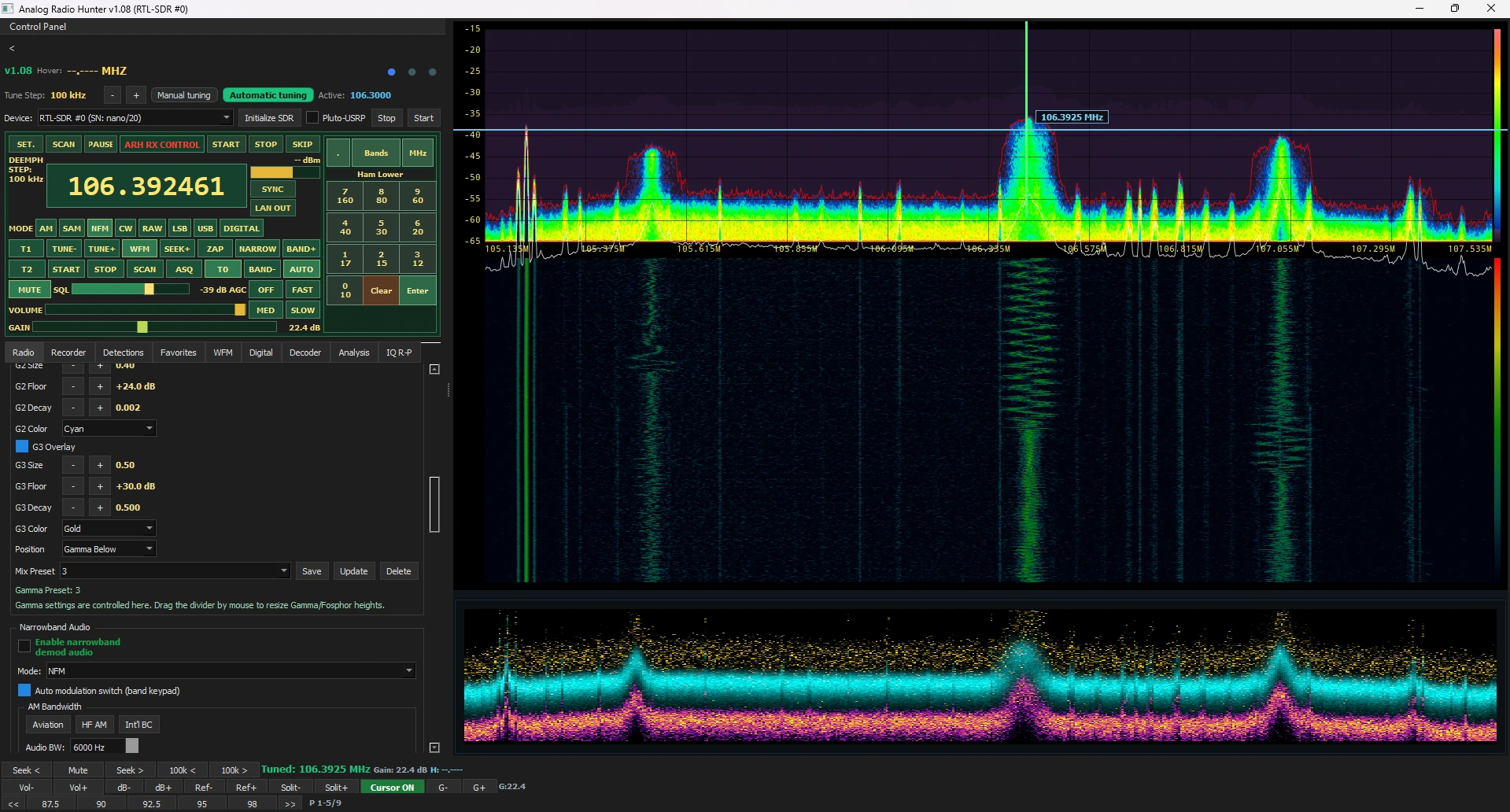
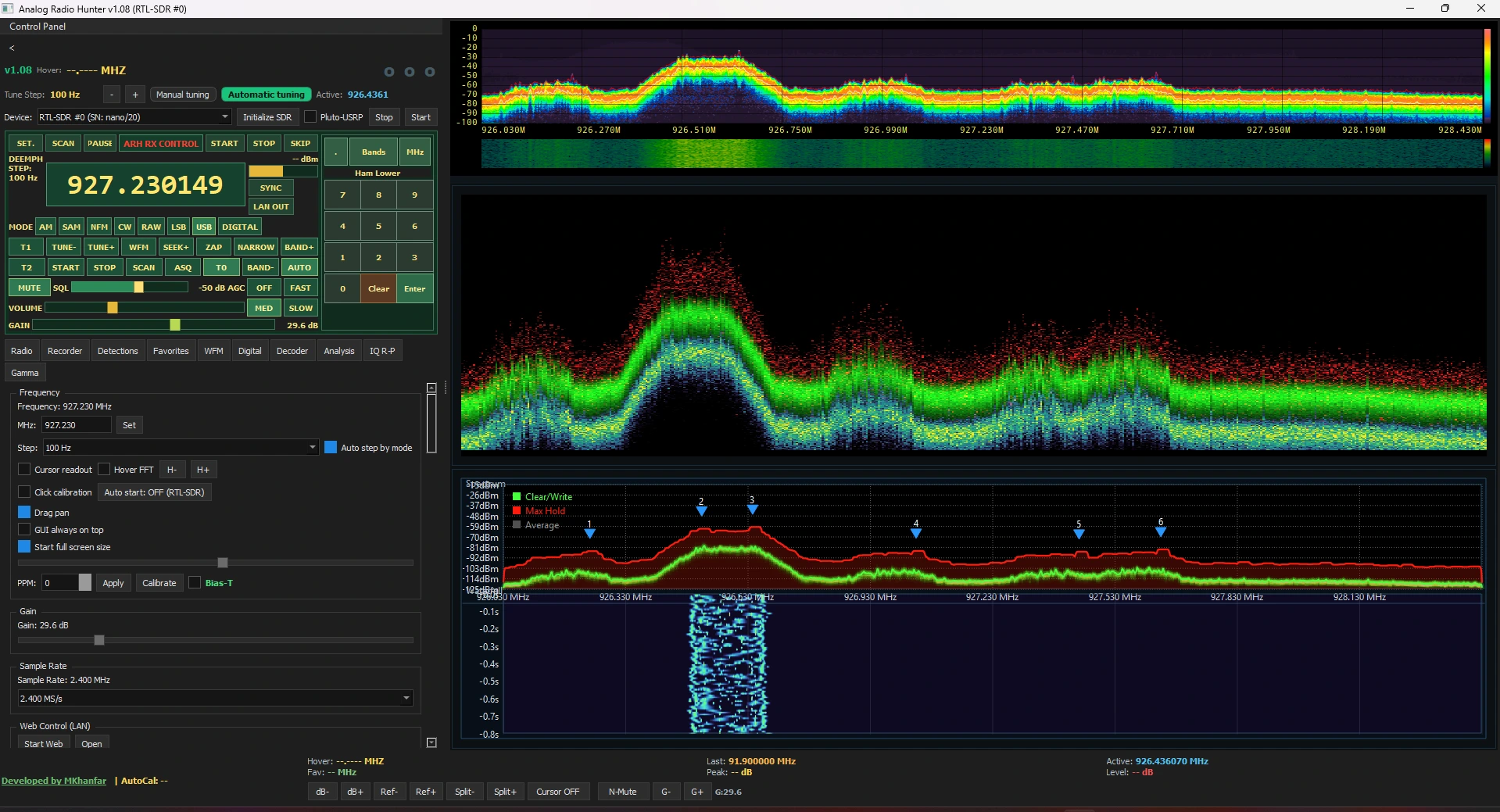
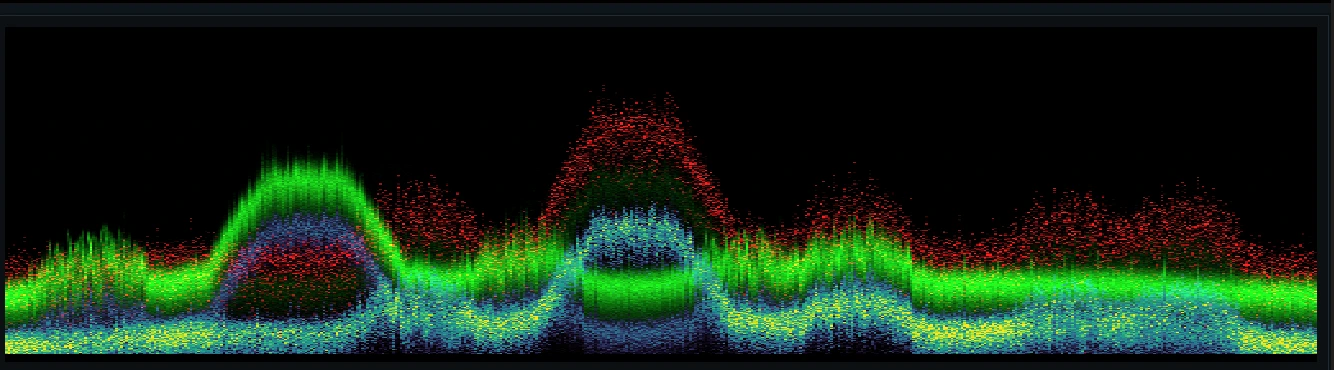
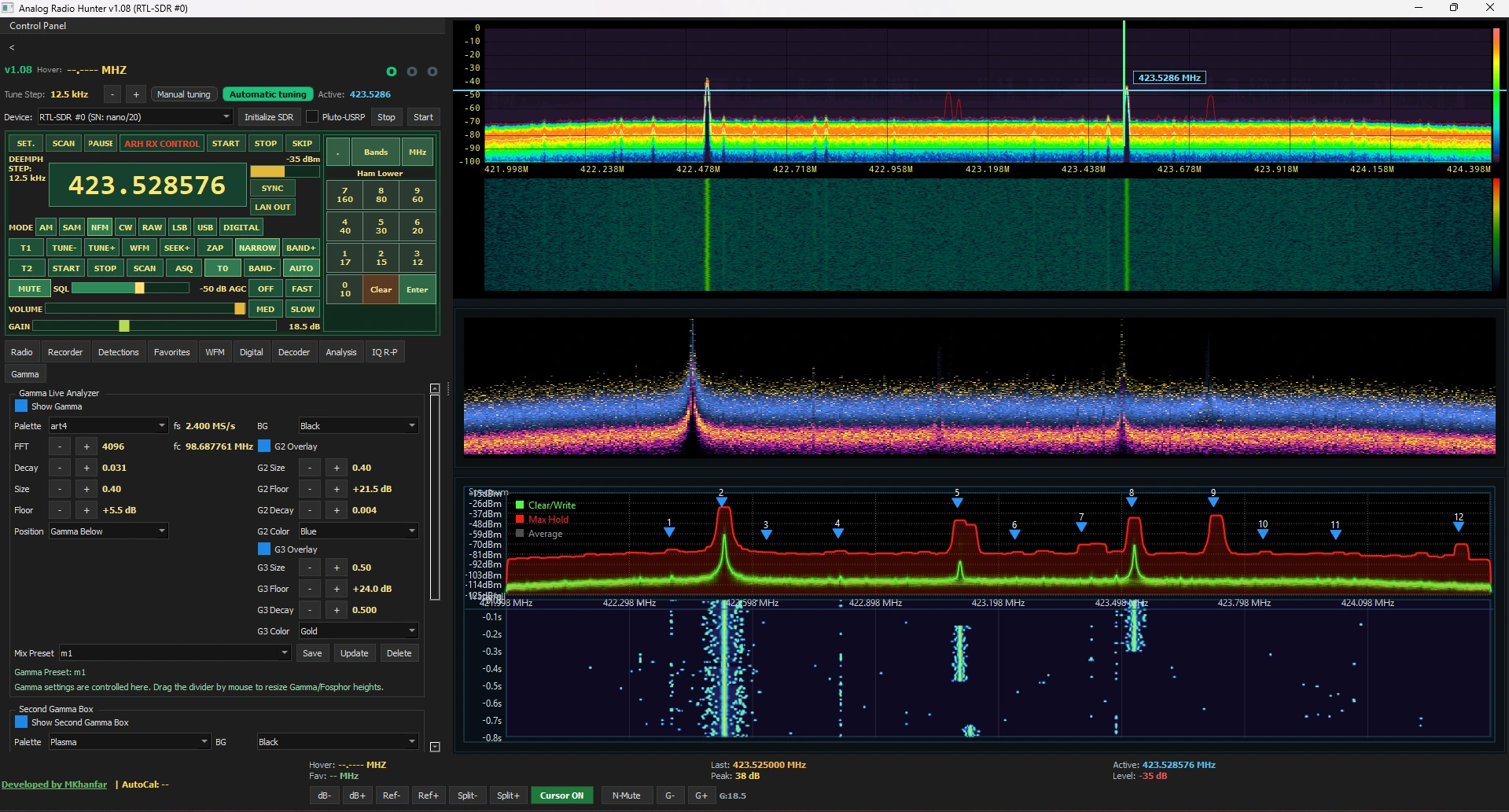
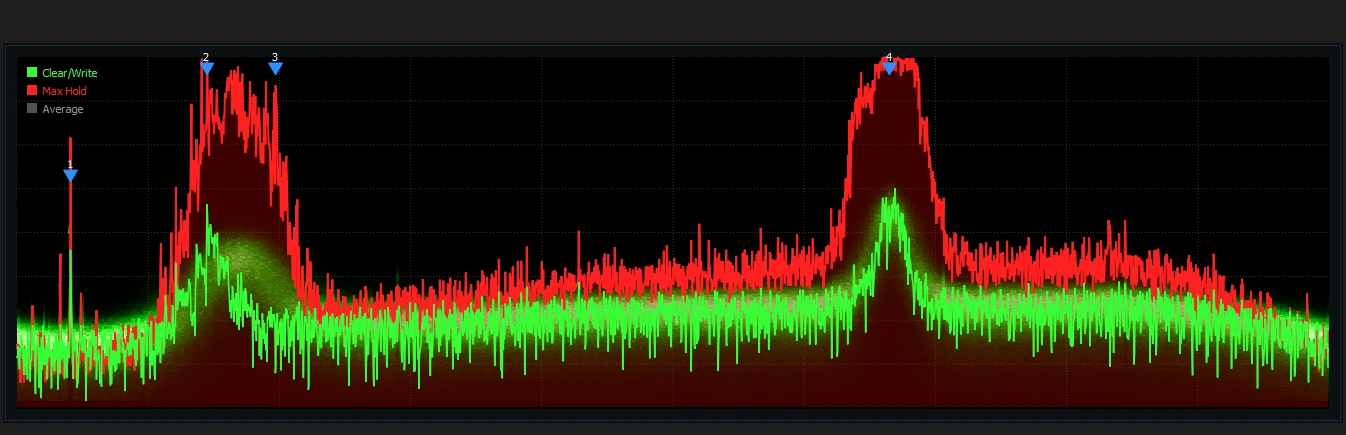
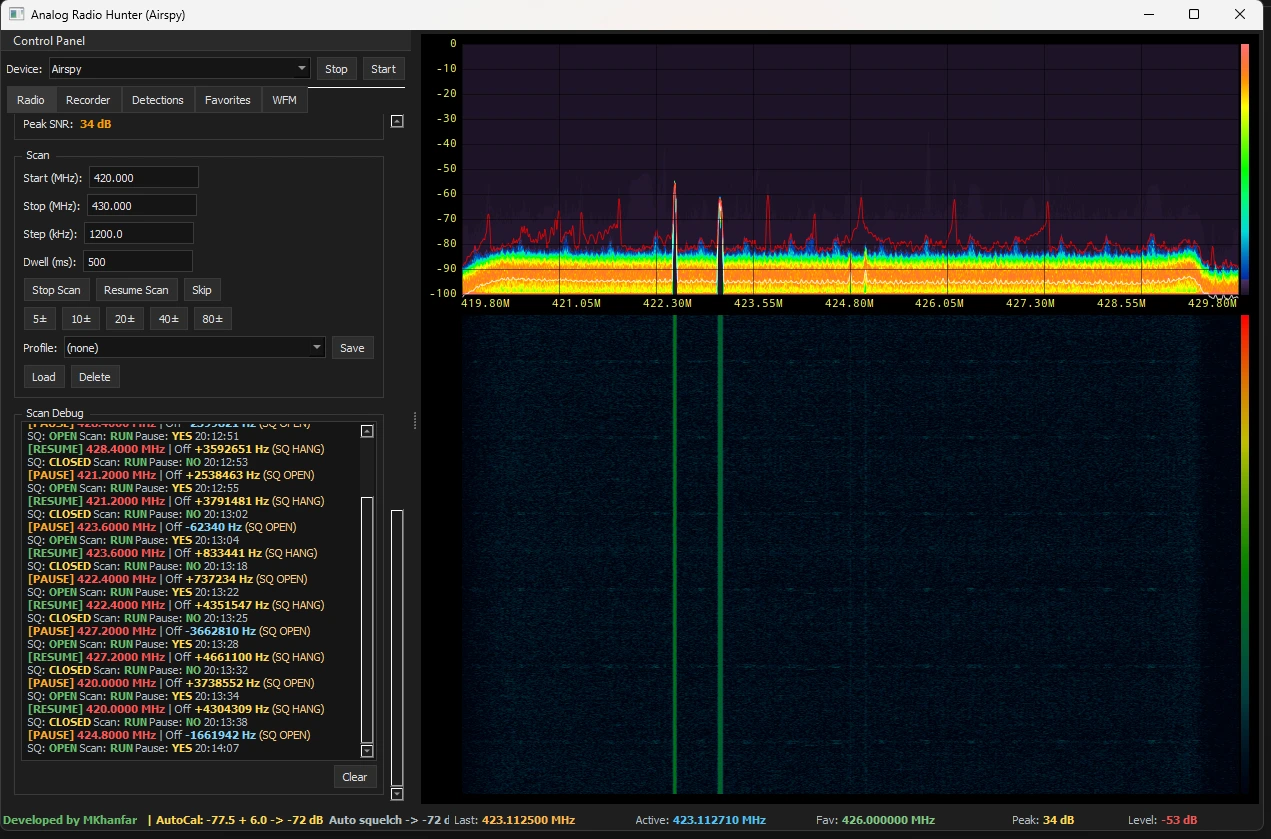
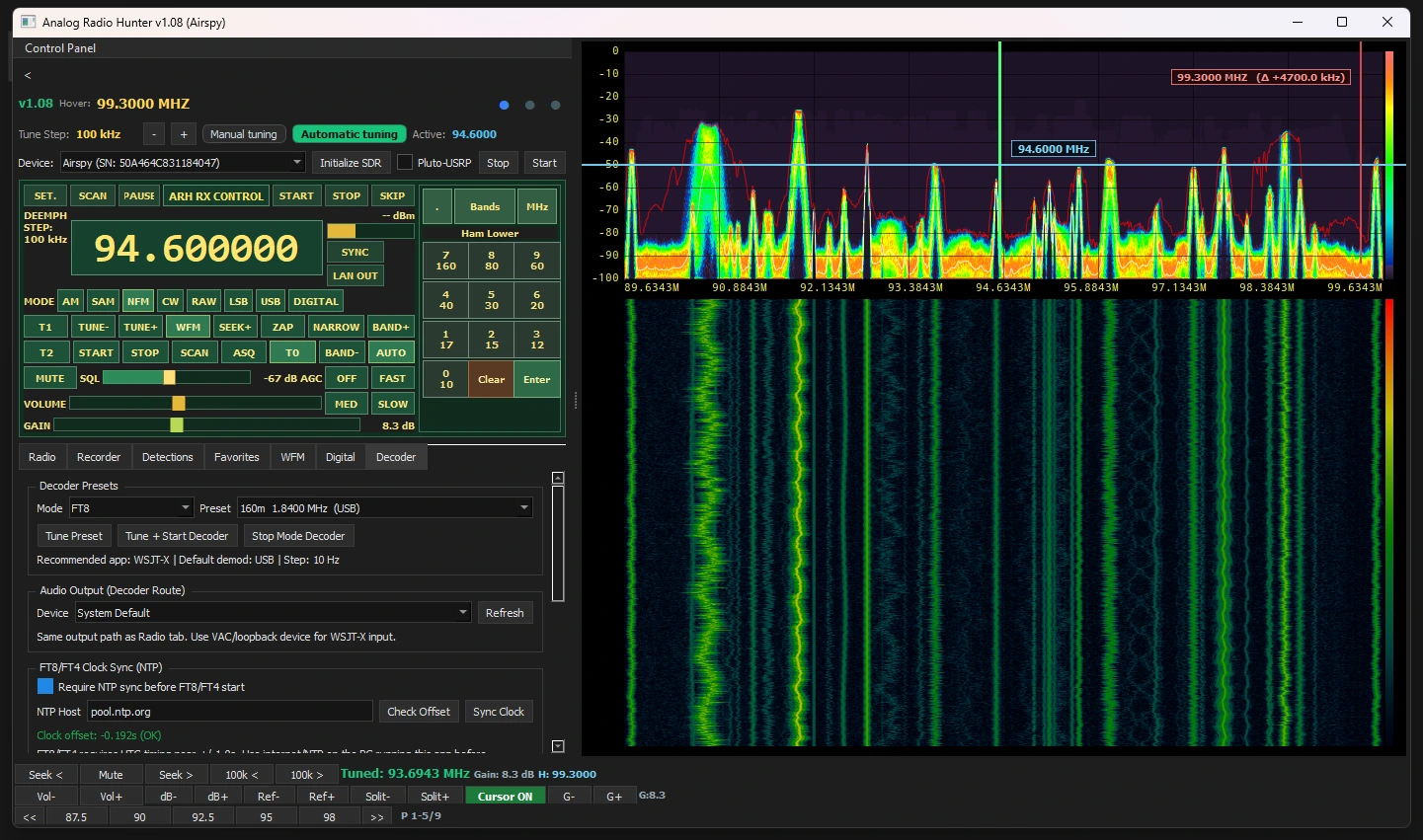
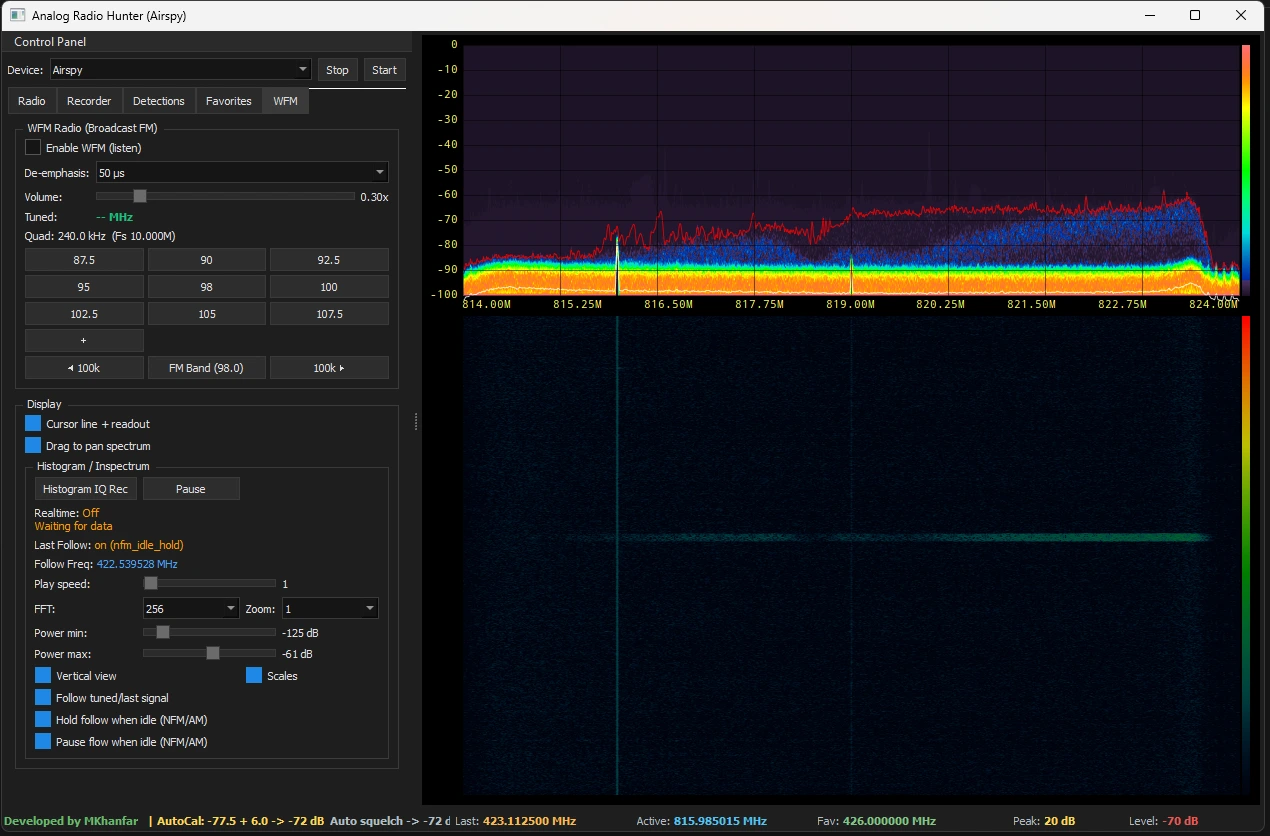
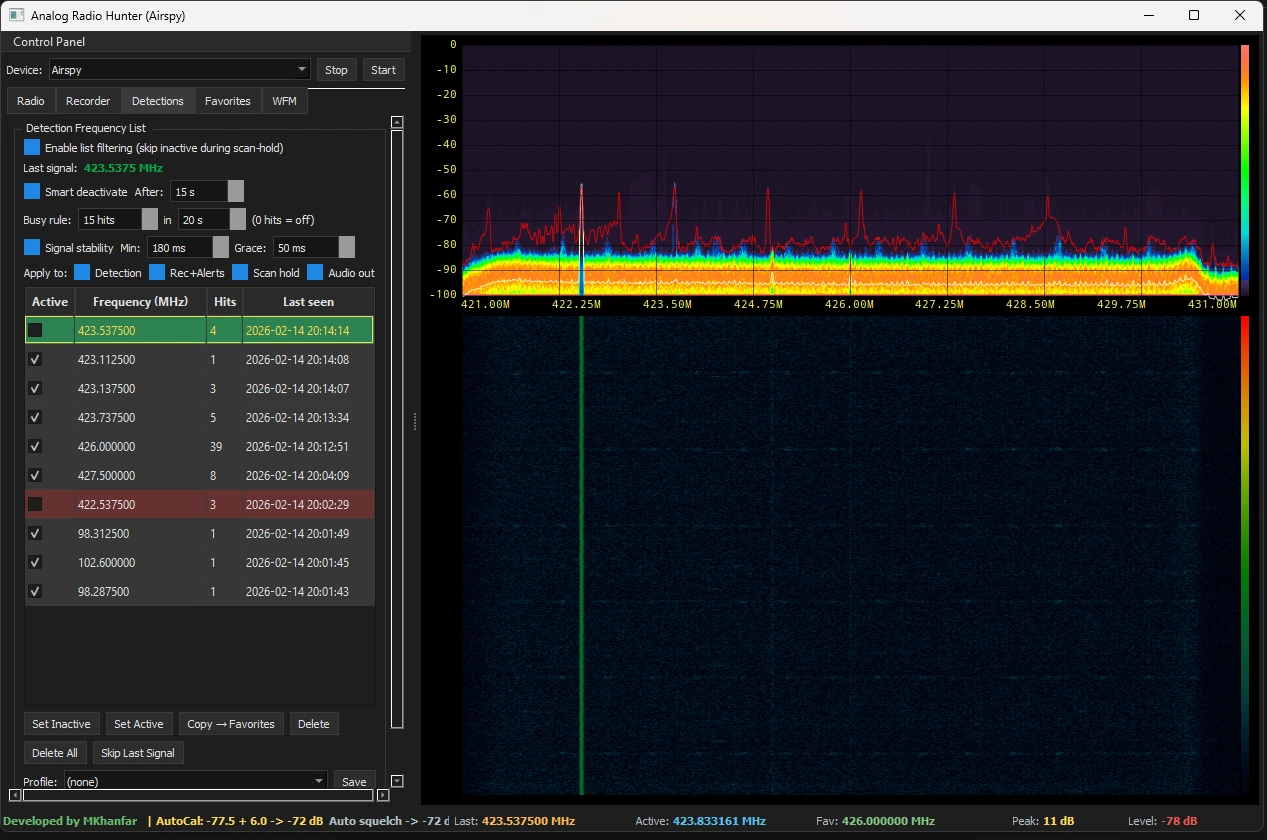
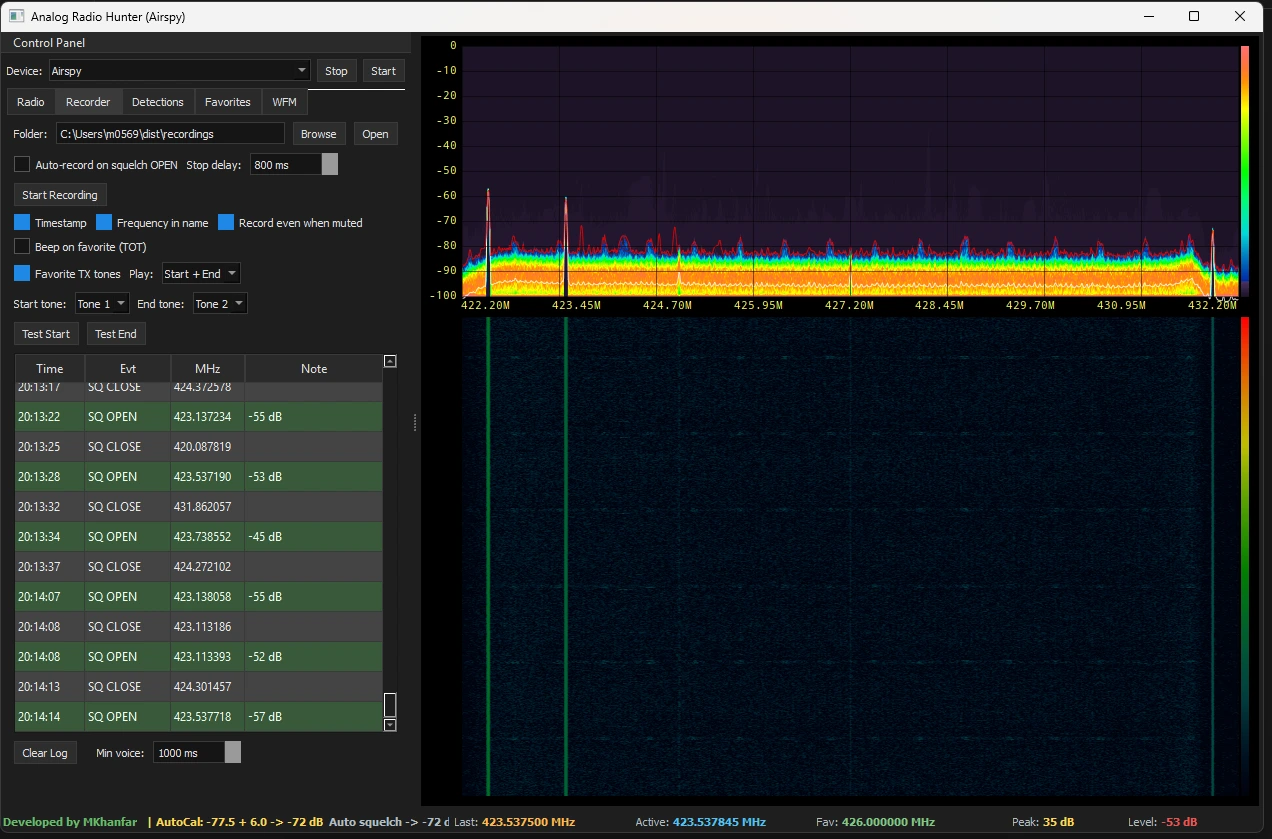
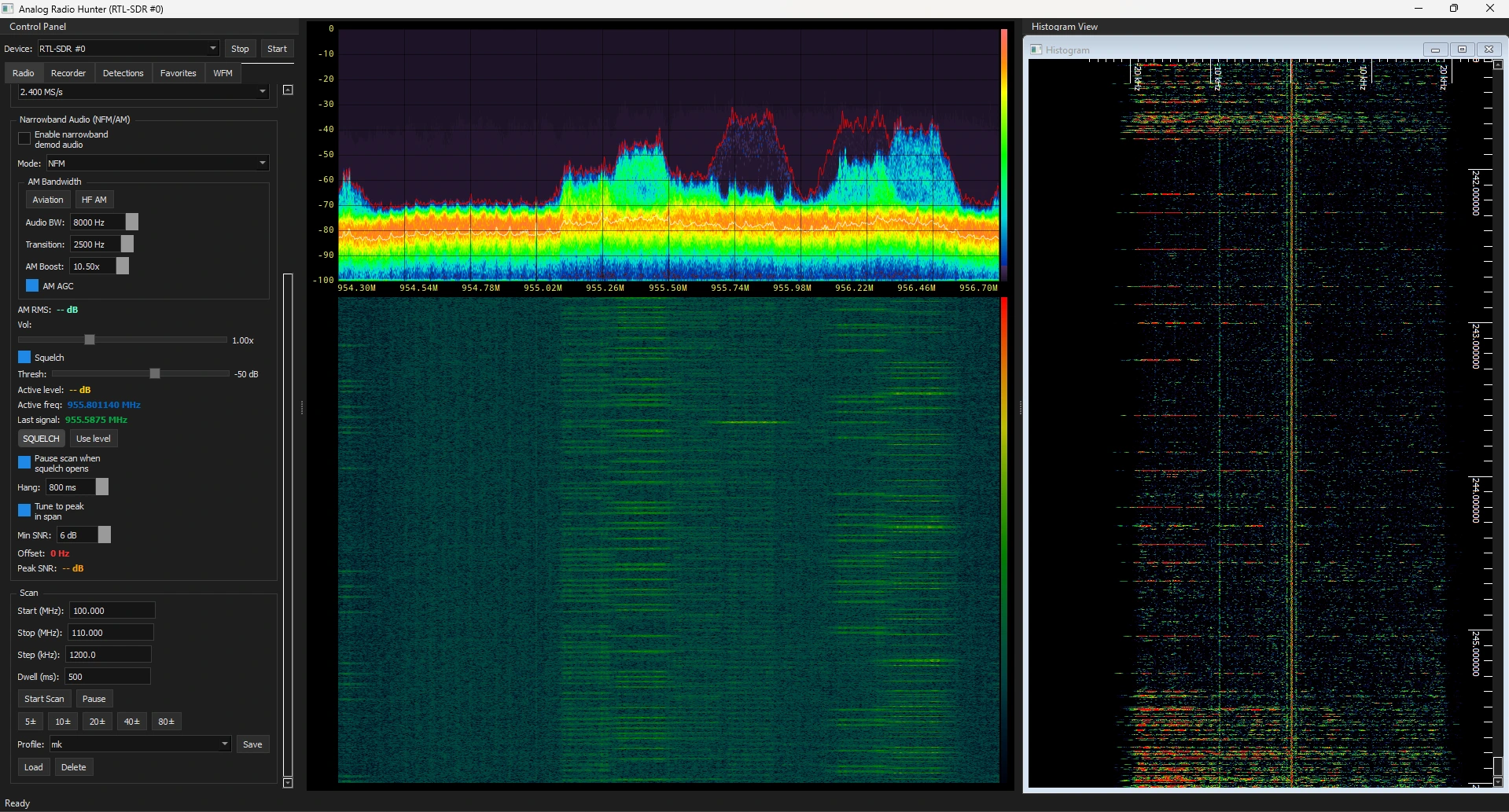
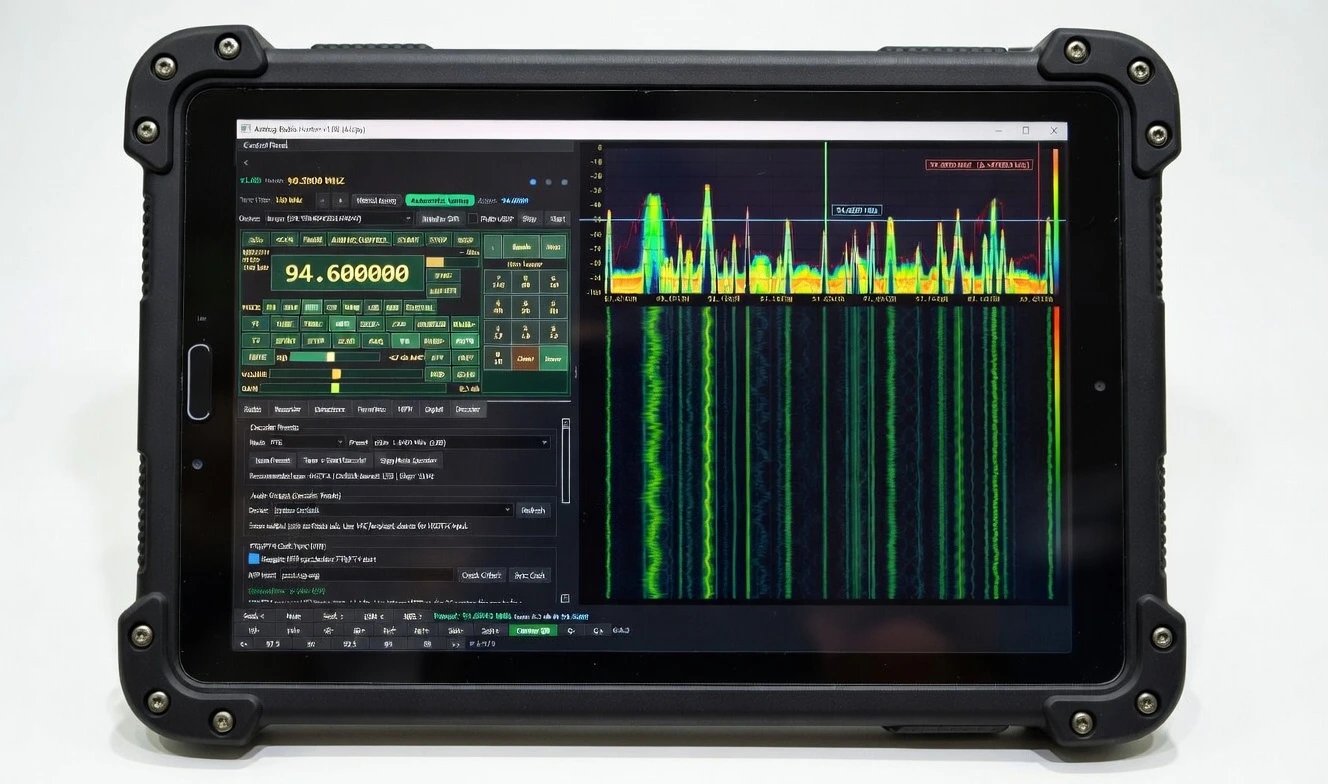
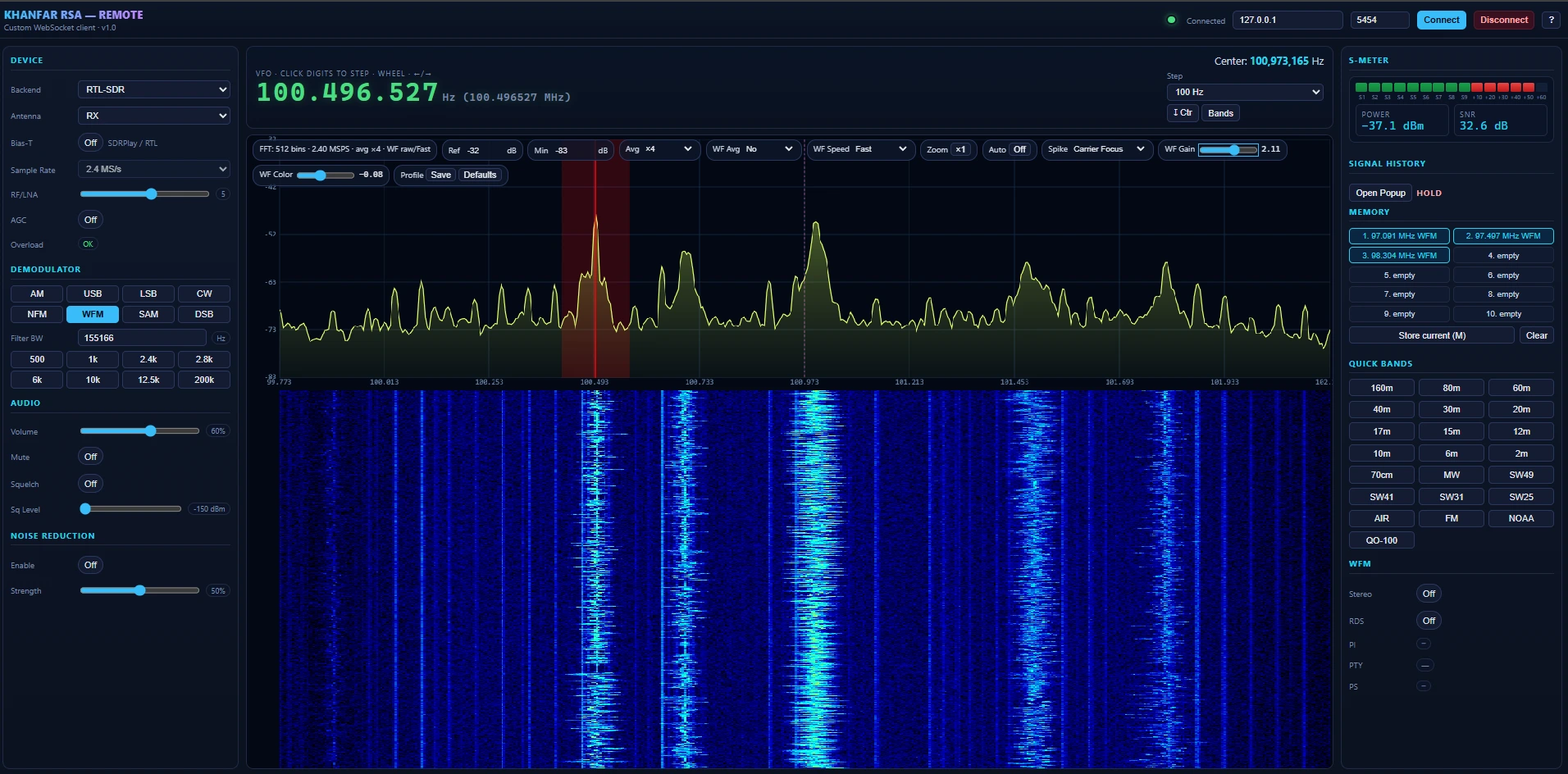
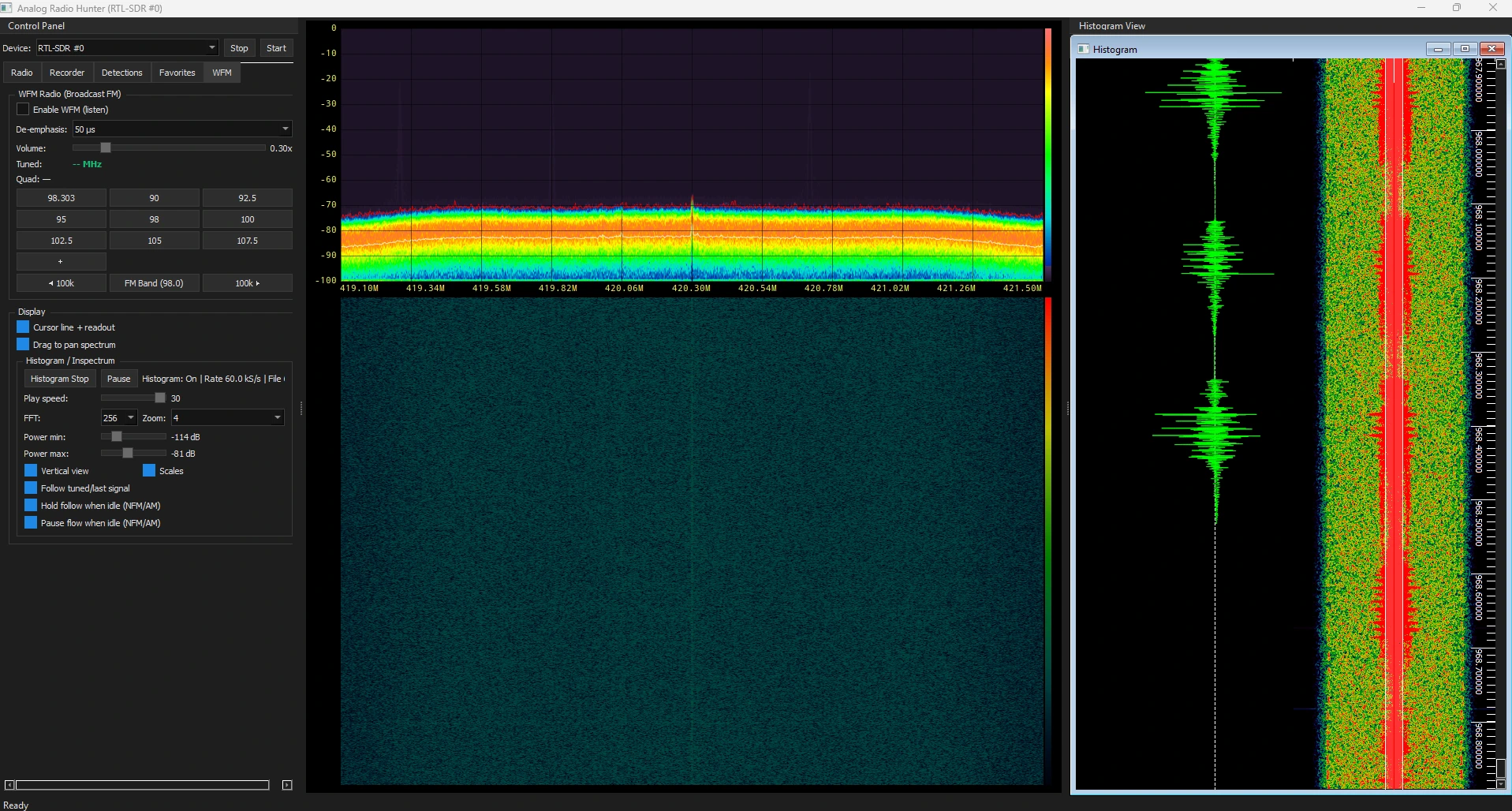
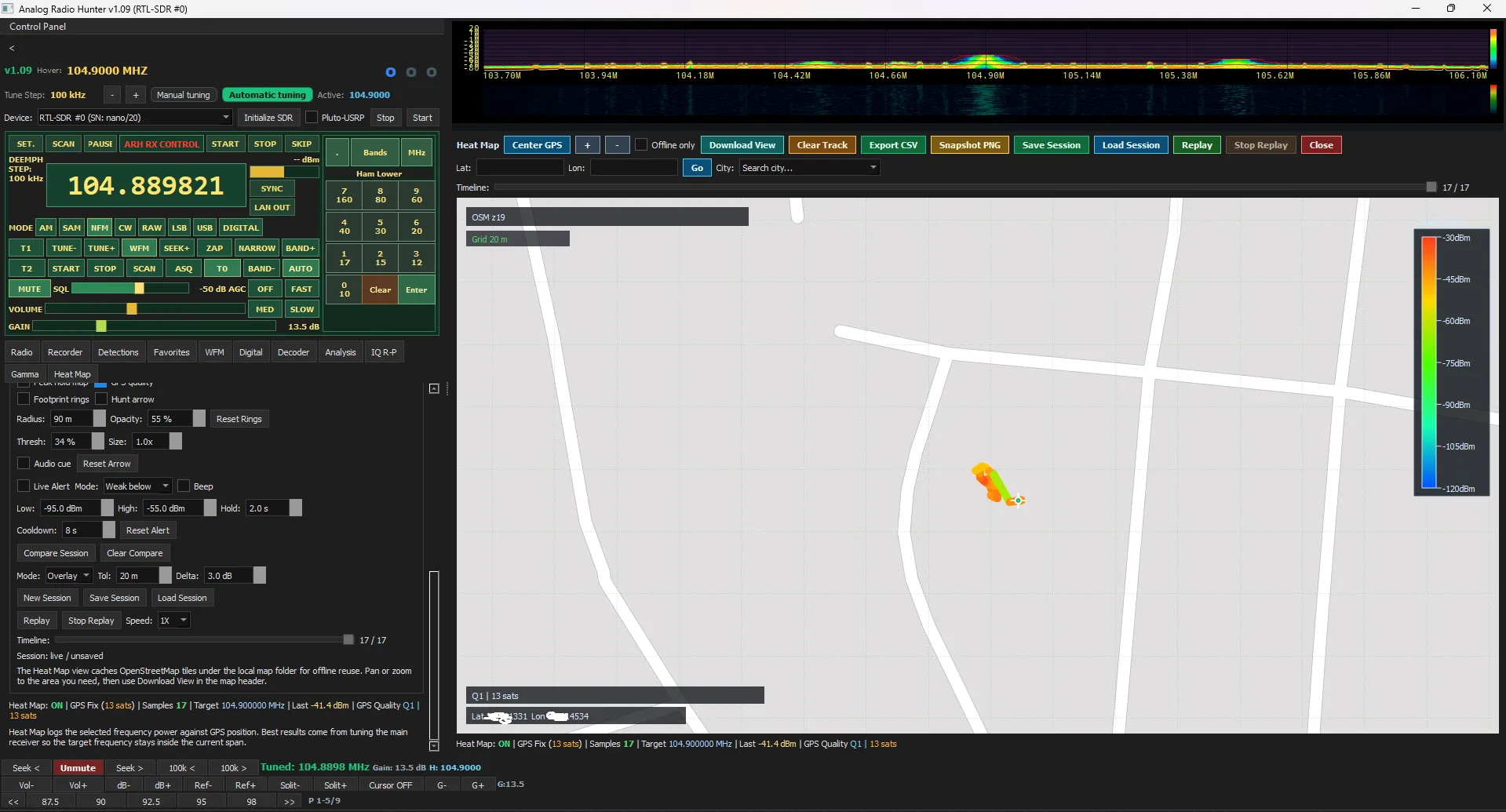
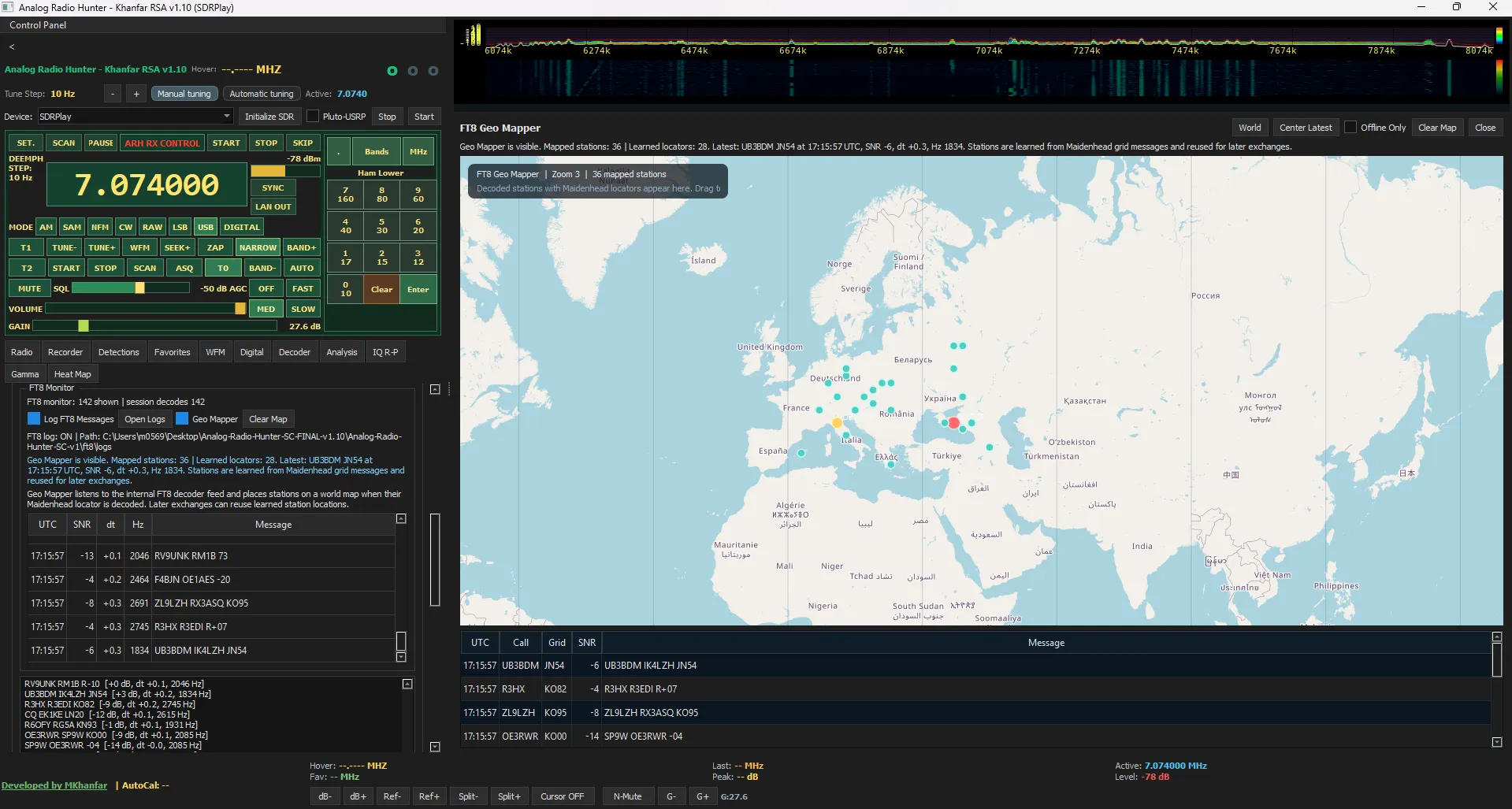
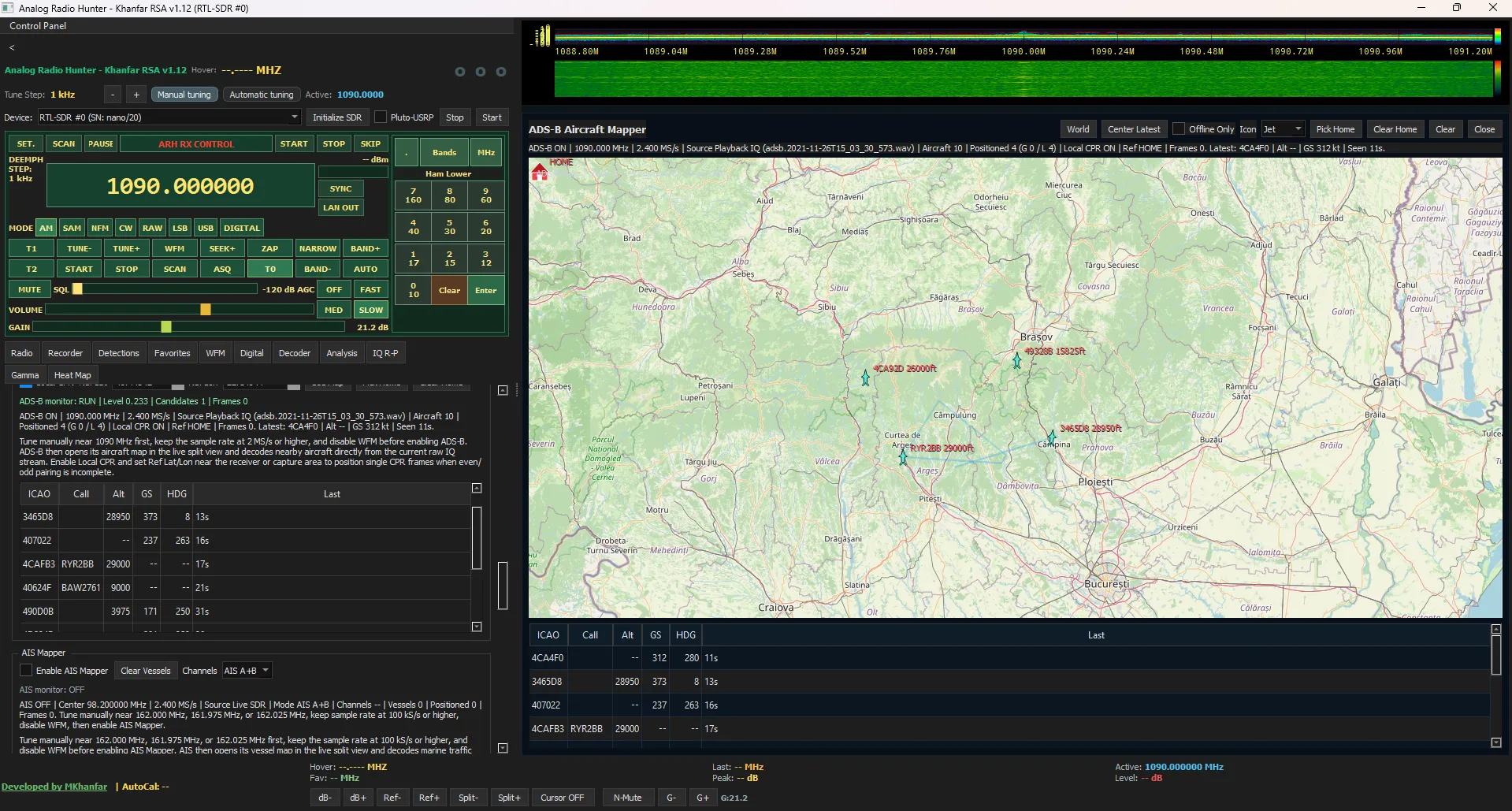
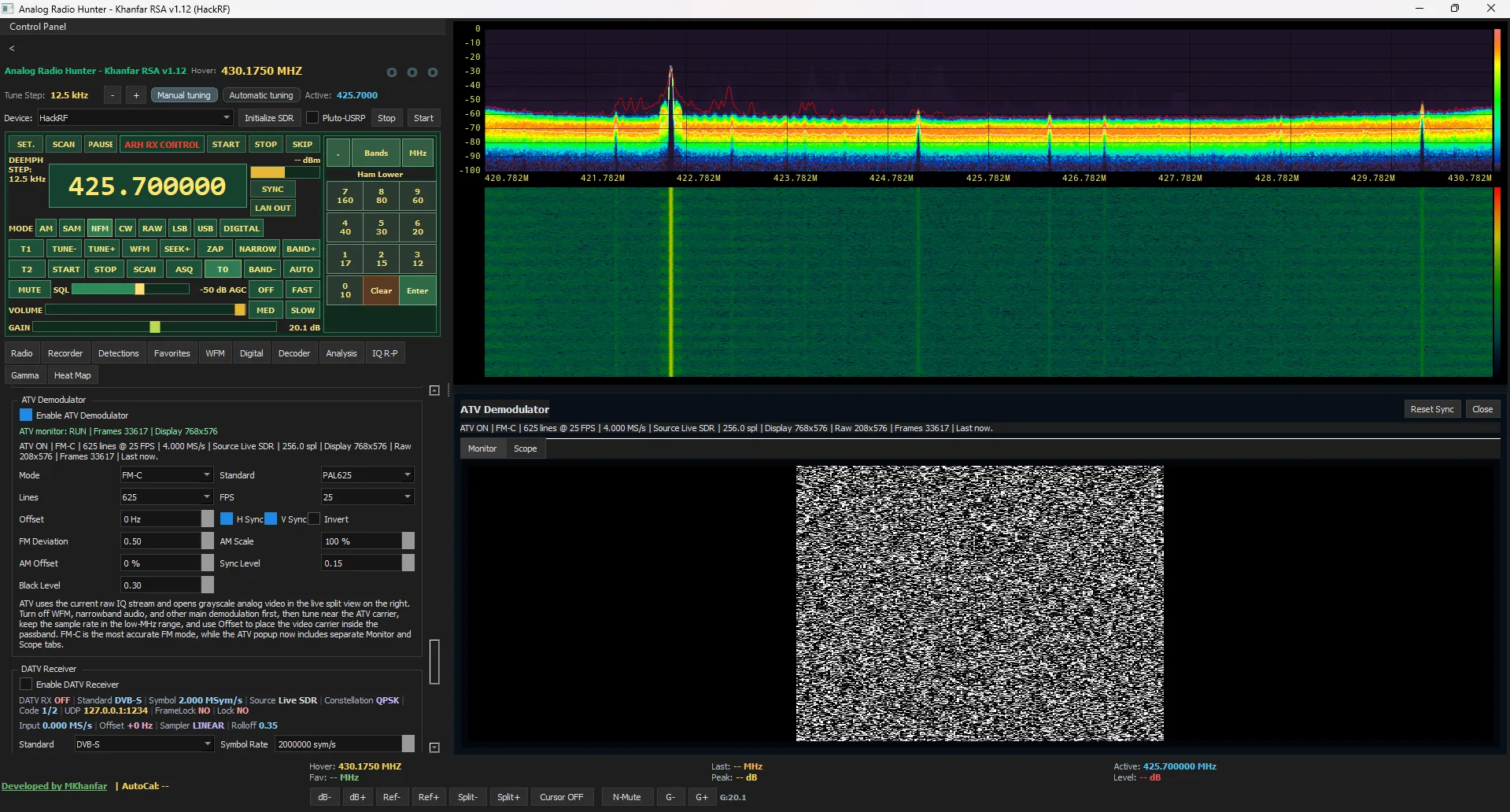
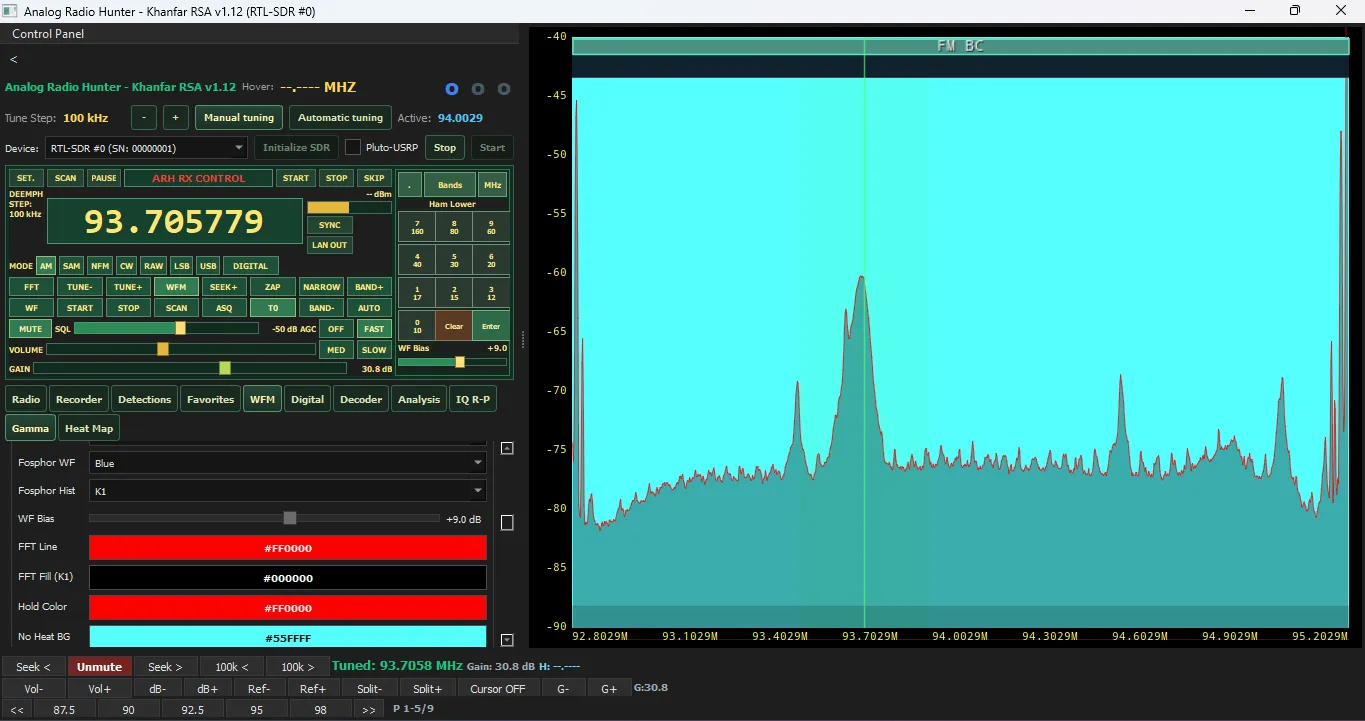
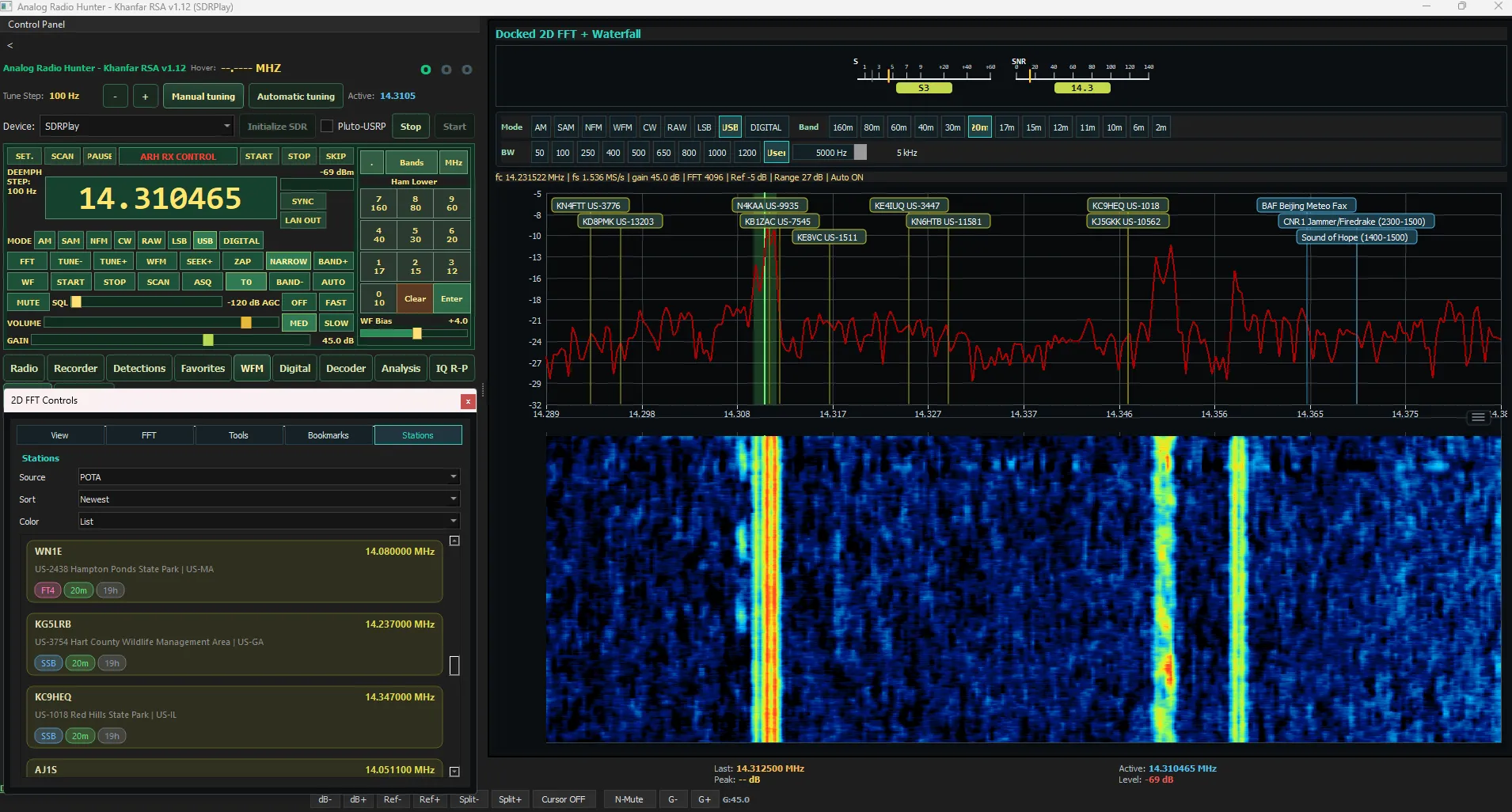
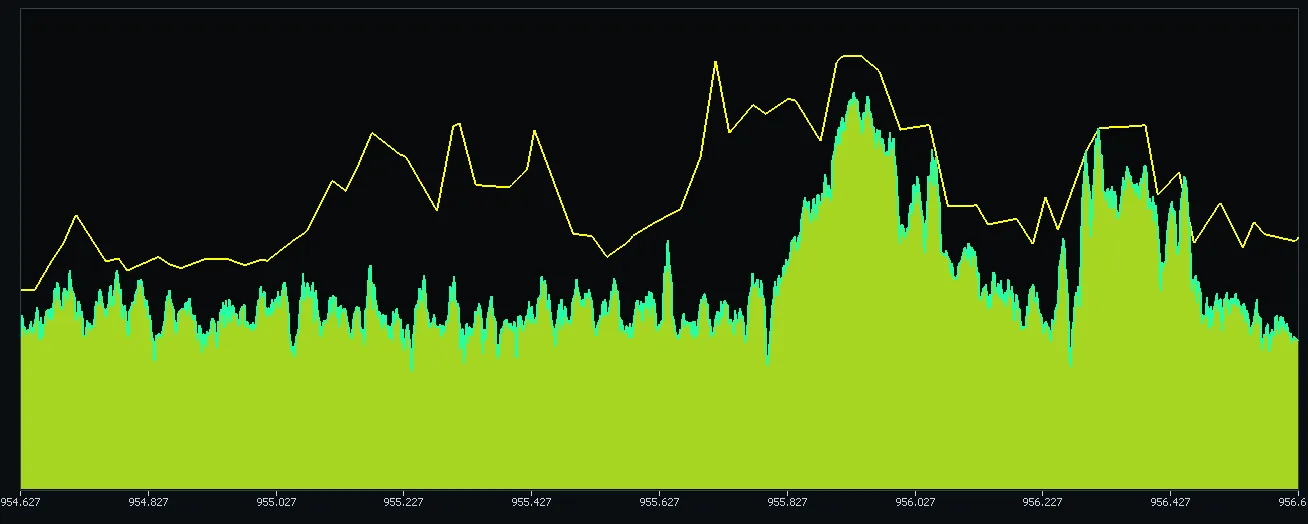
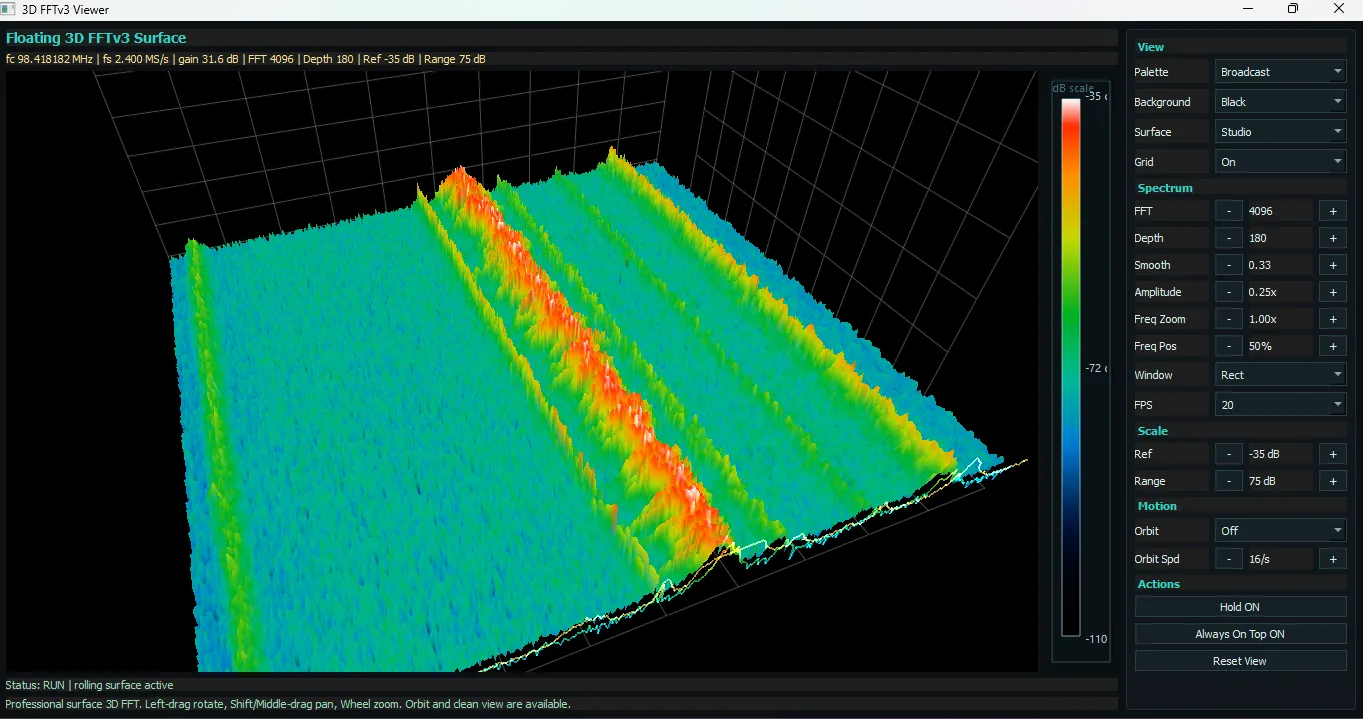
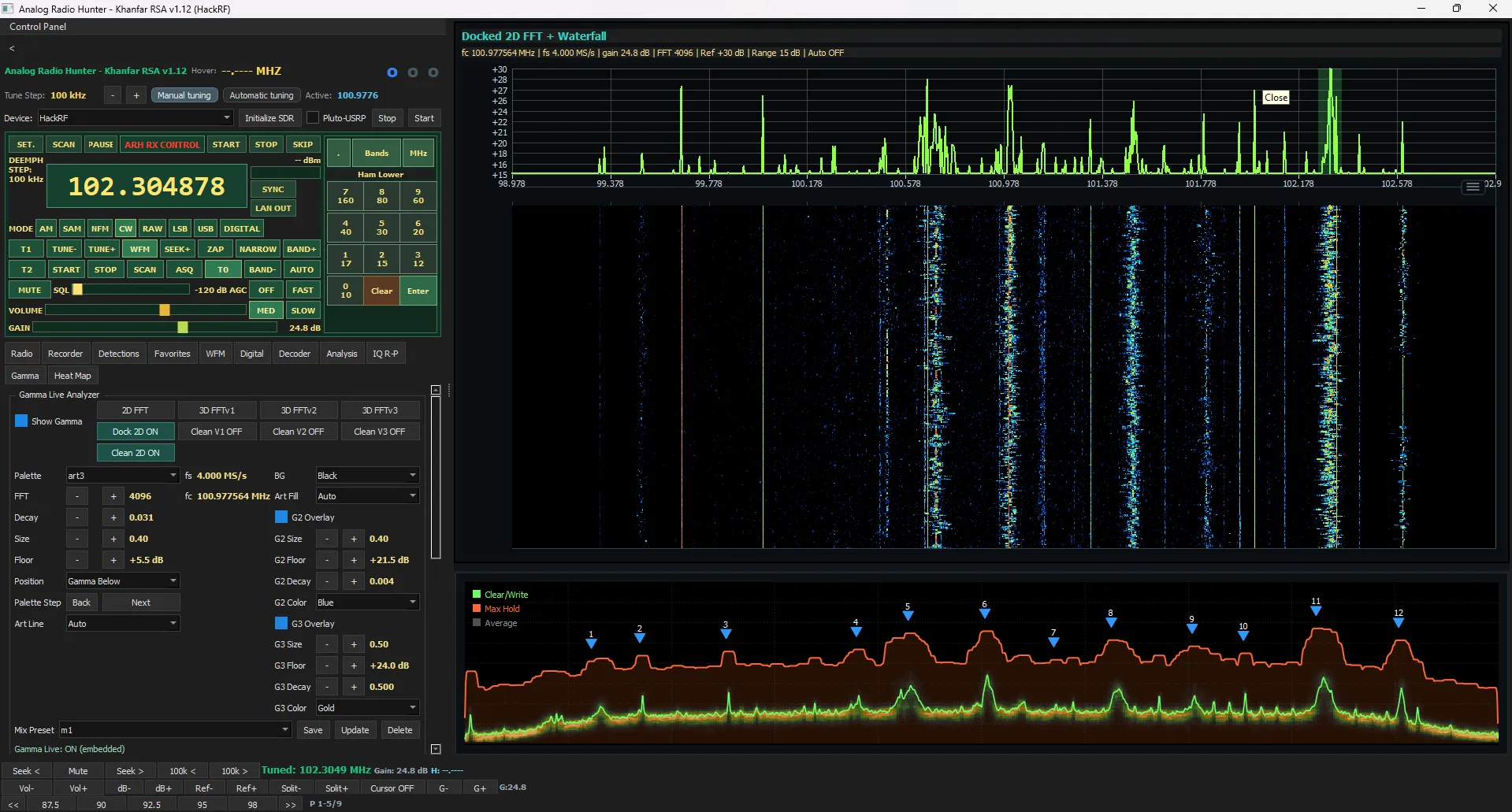
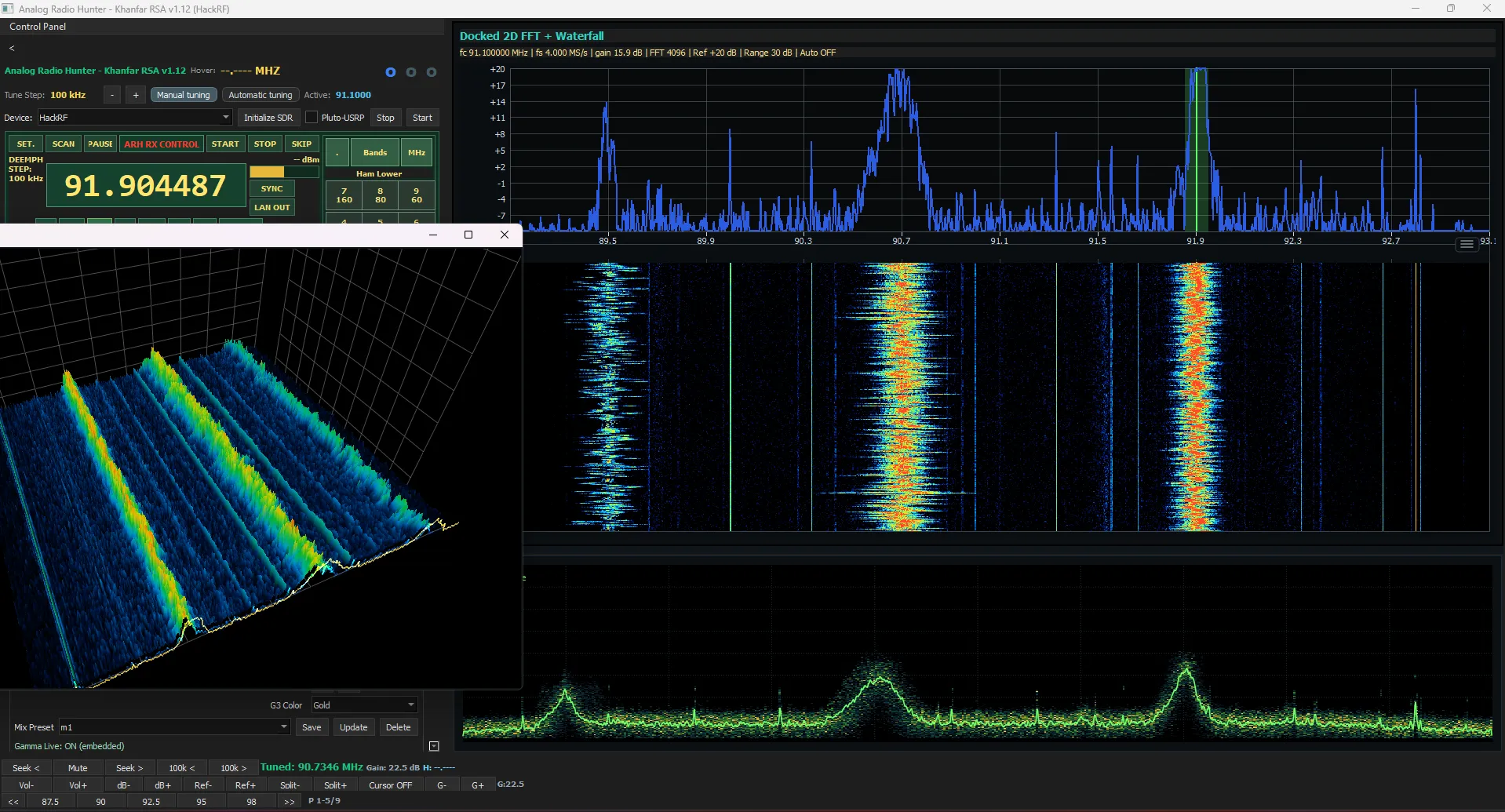
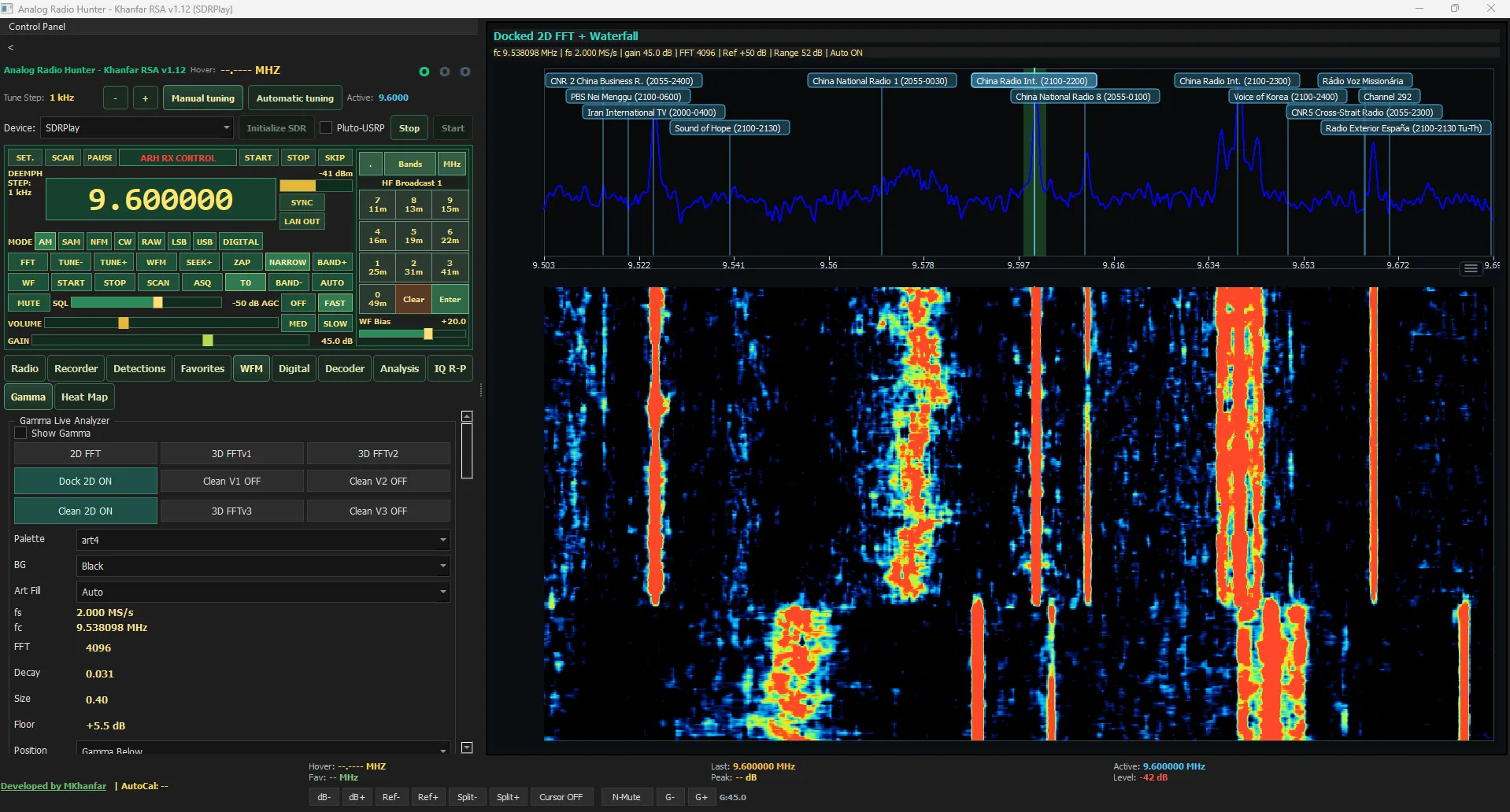
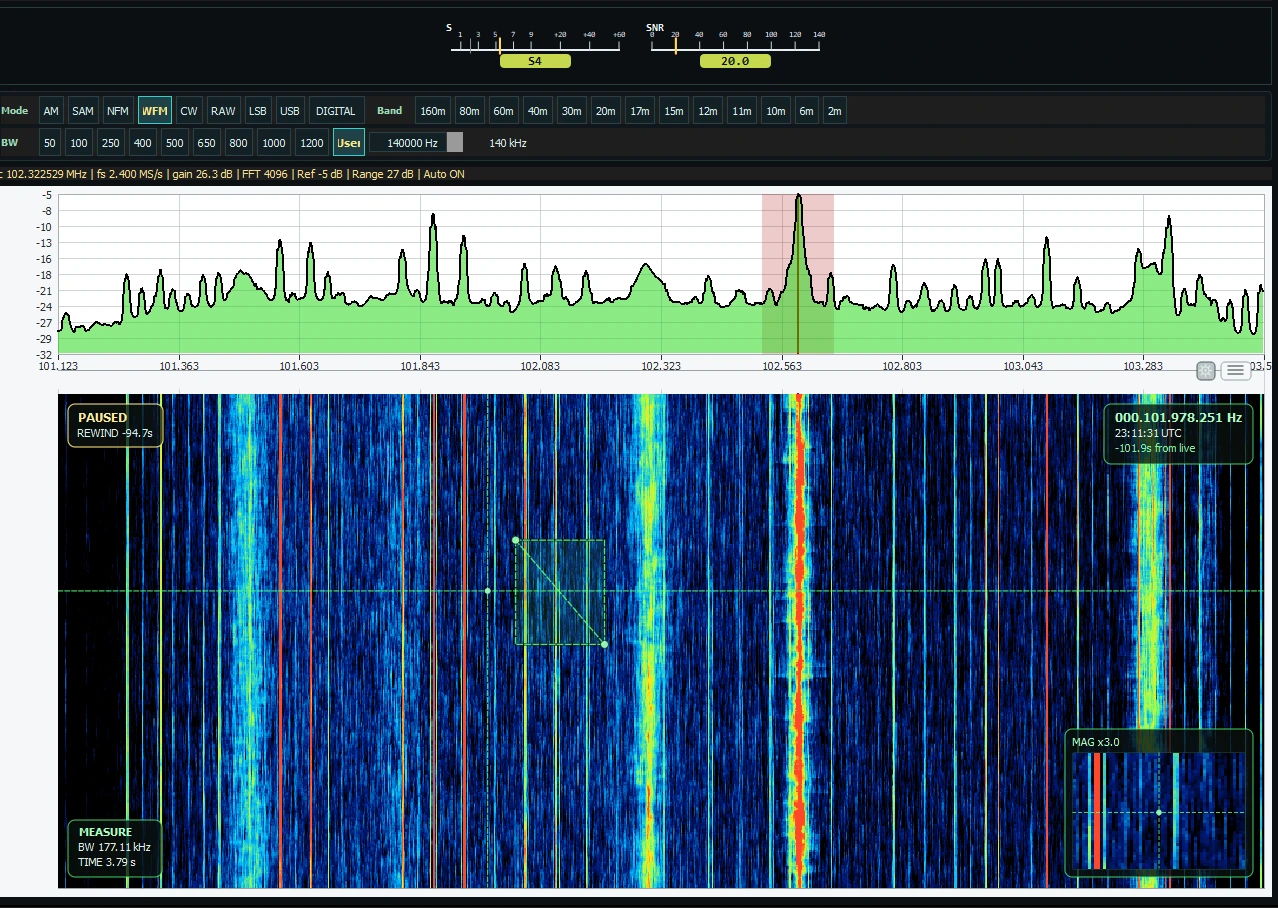
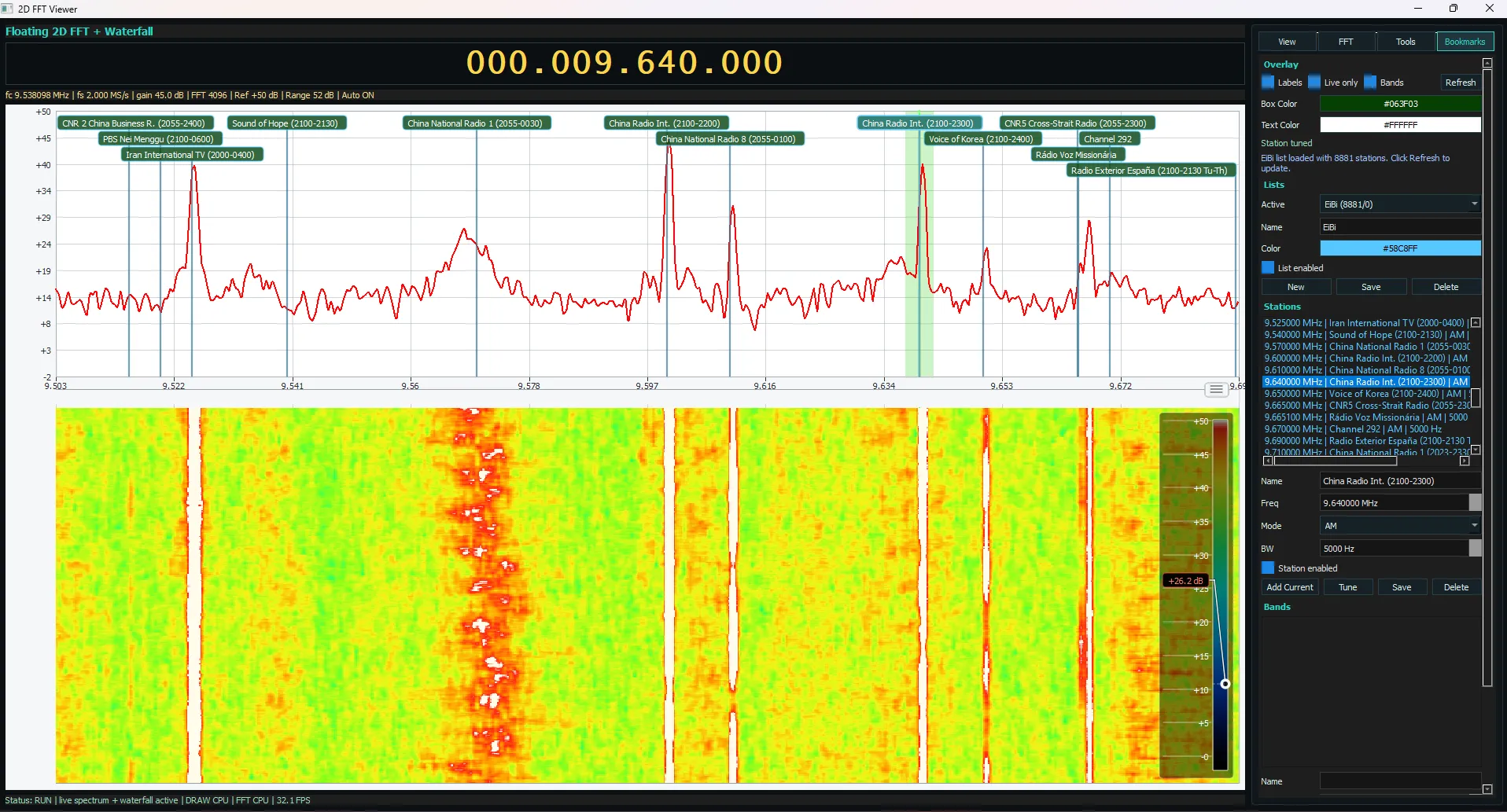
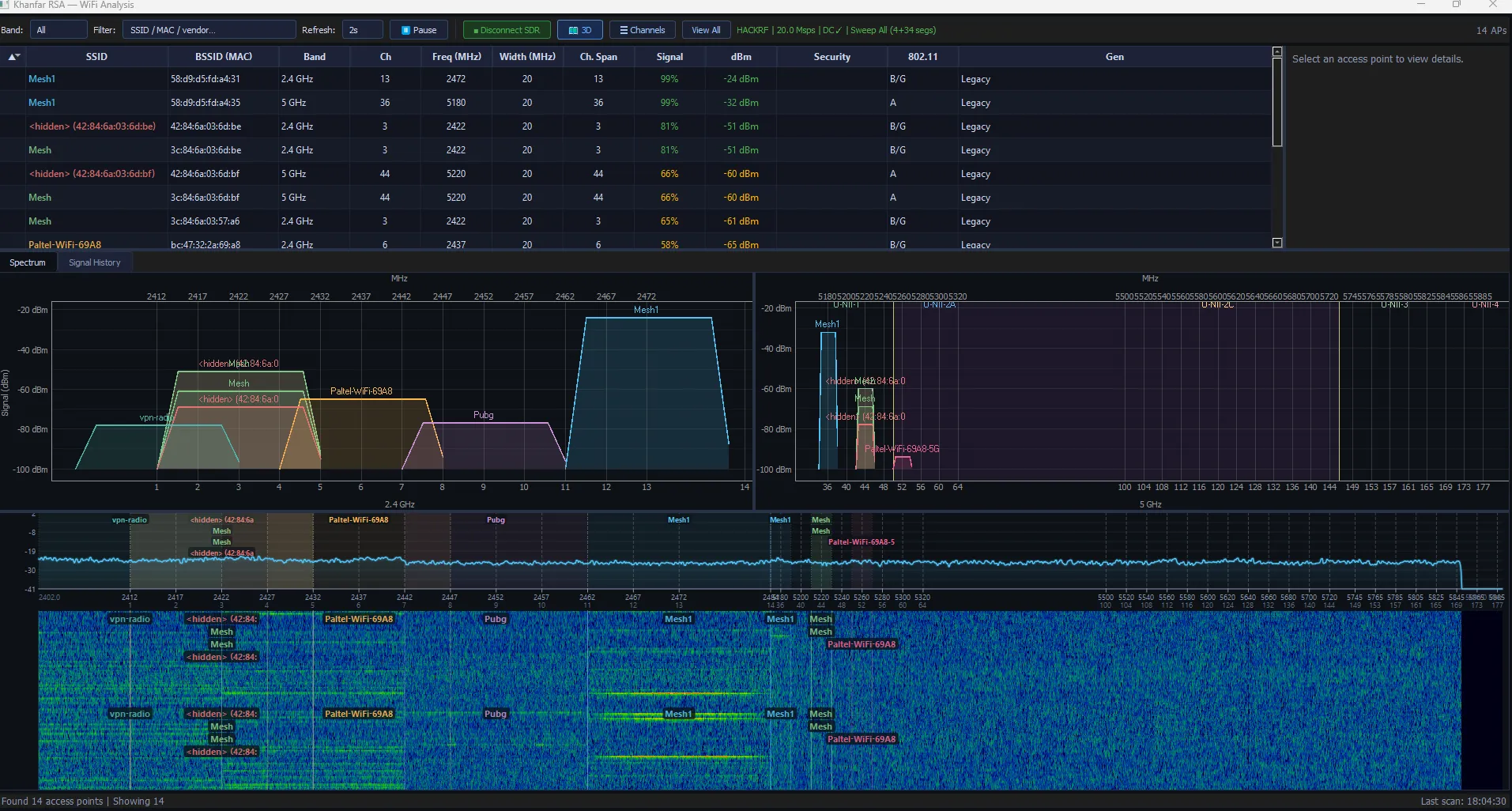
Khanfar RSA is a Windows SDR operations console that keeps radio control, wireless analysis, decoding, mapping, replay, and collaboration together so operators can move faster with less context switching.
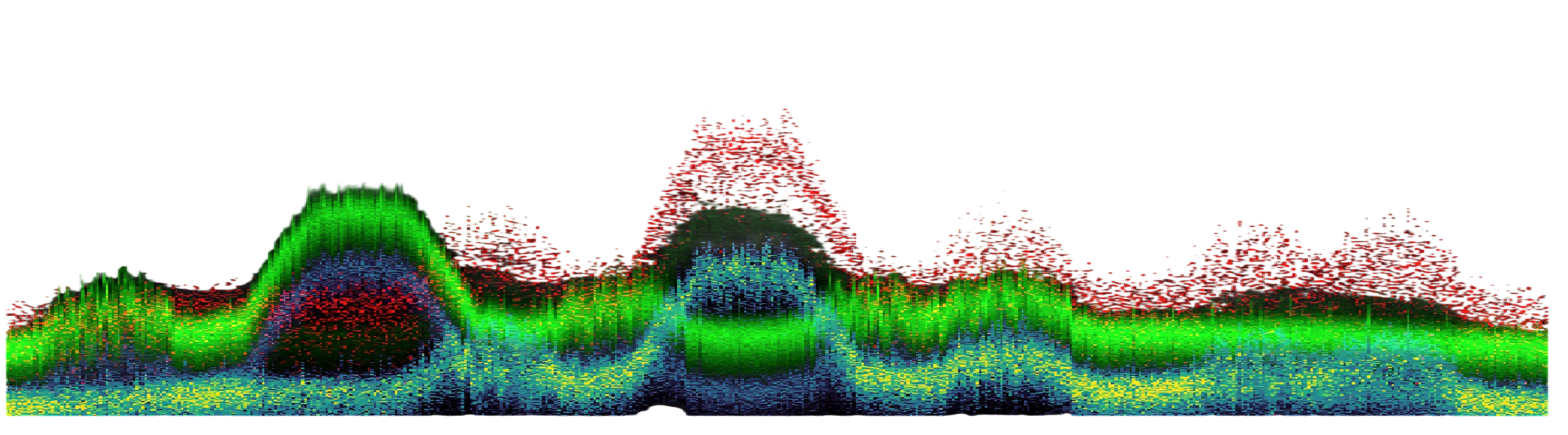
Whole-span monitoring with fast response to live peaks.
Analog, Pure DSP, DSD, FT8, Morse, PSK/RTTY, and CAT-linked flows.
HF listening tools with tight AM/SSB tuning, floating 2D FFT overlays, separate Renderer and FFT Compute CPU/GPU paths, 120-second waterfall rewind review, and replay backup.
Heat Map, FT8, ADS-B, and AIS all live beside the radio path.
Analysis tab, IQ replay, WAV IQ, and return-to-live workflow.
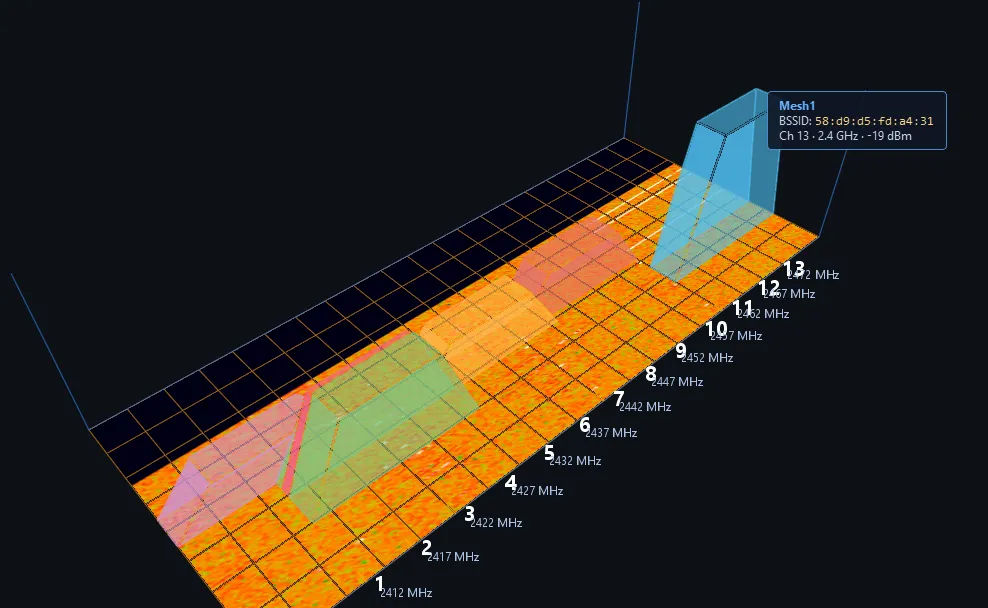
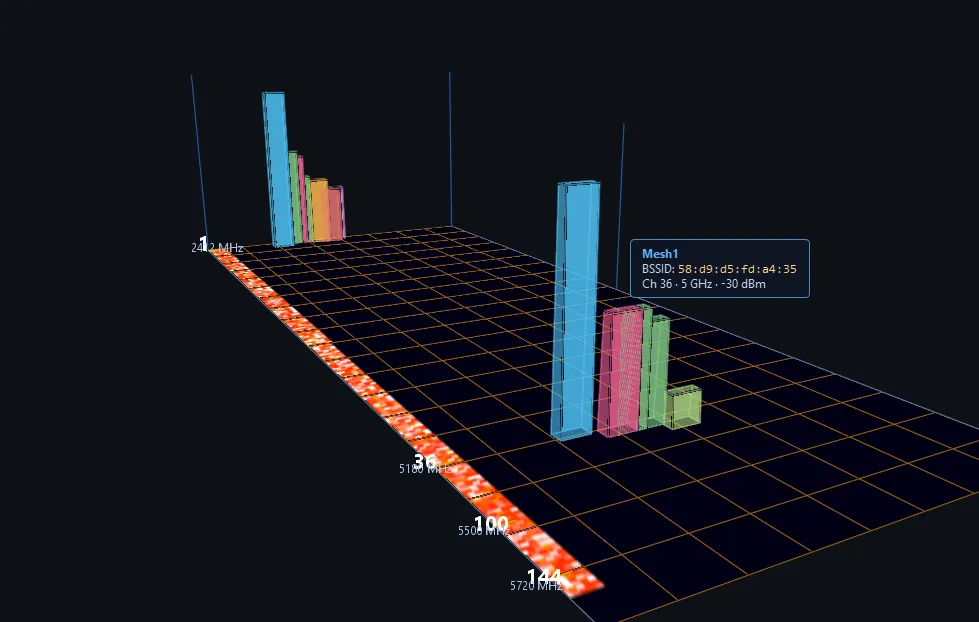
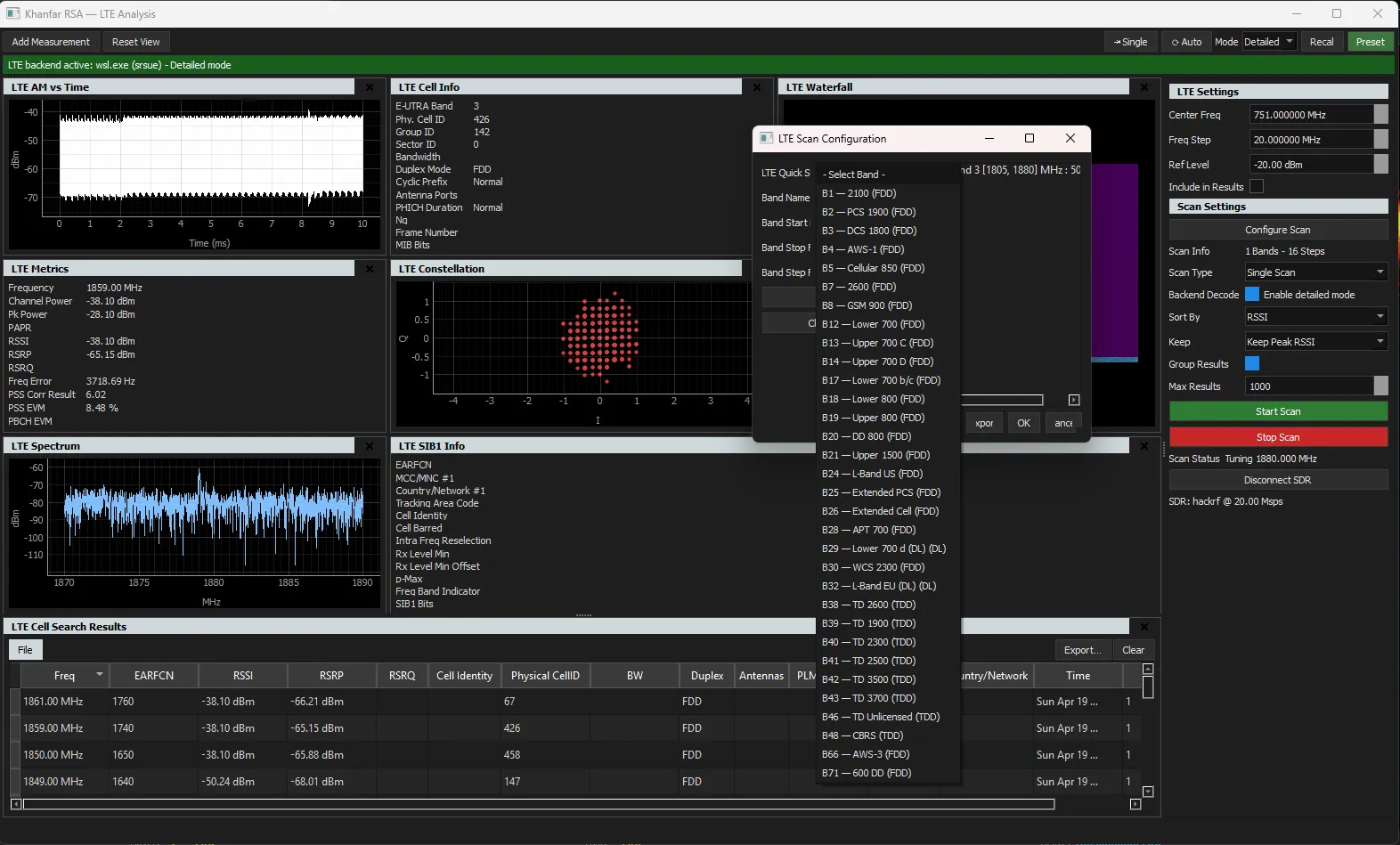
2.4/5 GHz Wi-Fi occupancy workflow and LTE cell-analysis views bring wireless survey and downlink inspection into the same console.
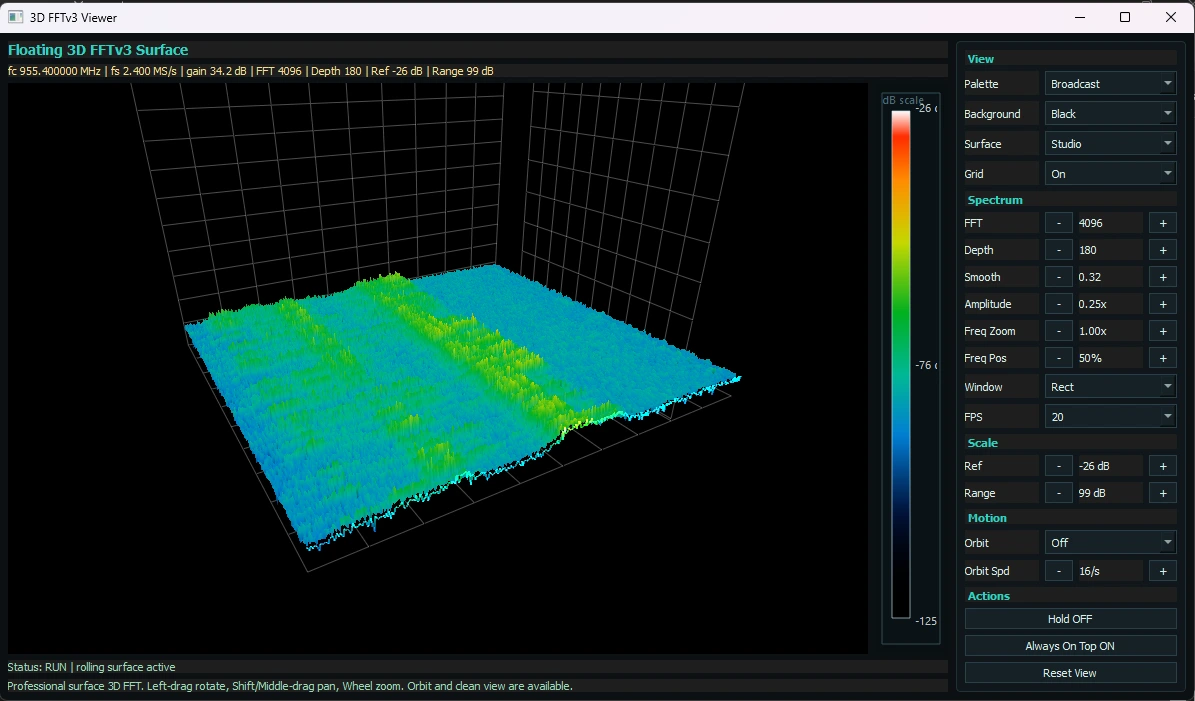
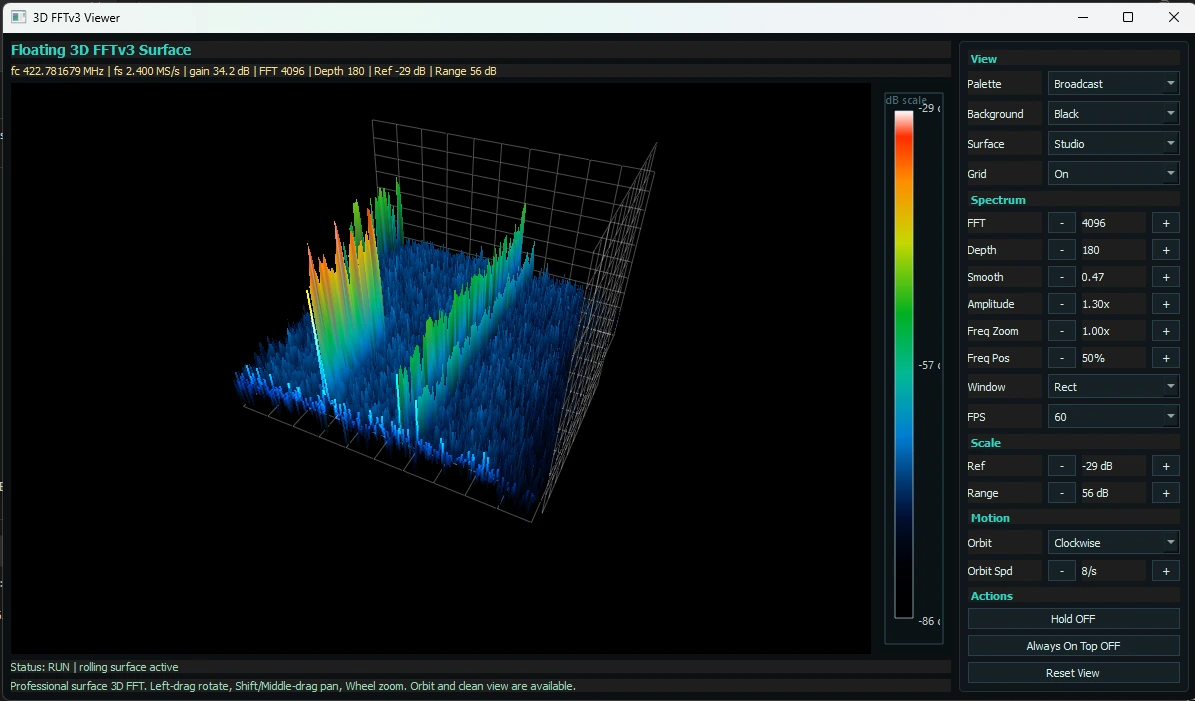
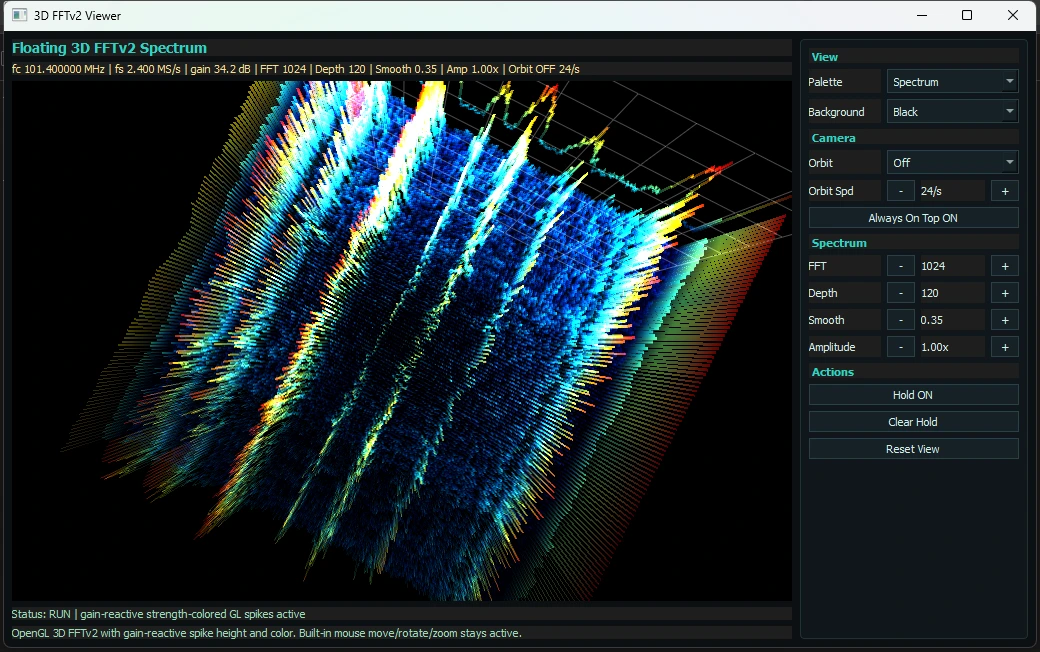
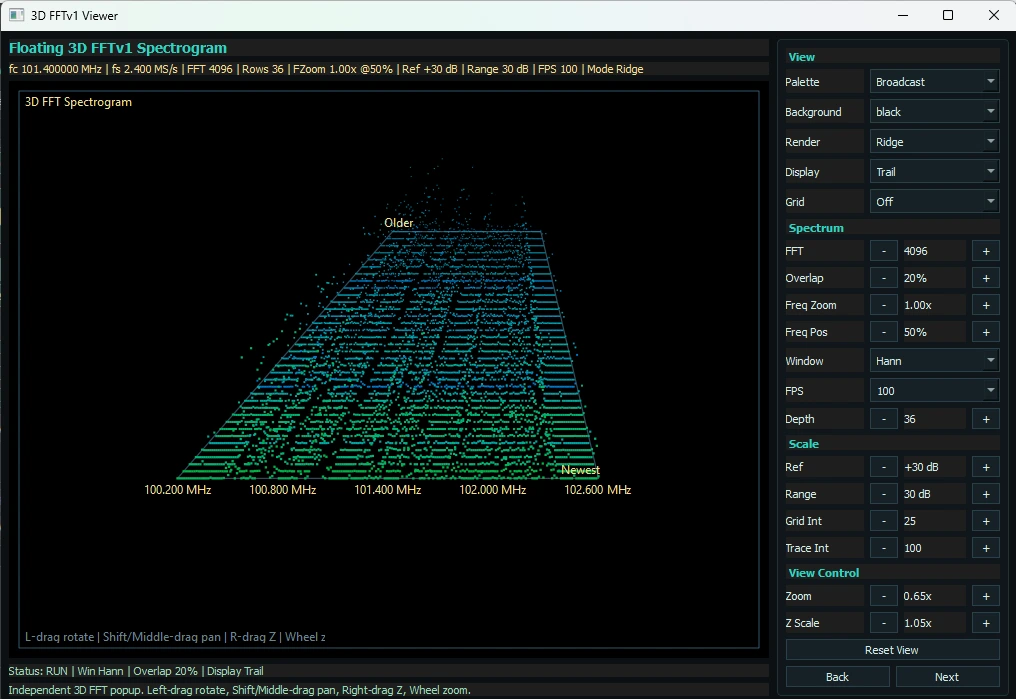
3 Layers Gamma, second pane, art modes, floating 3D FFT views, and Fosphor controls for FFT size, response, overlap, VSync, and timing.
Khanfar RSA is not limited to spectrum browsing. It is designed for real tuning and listening work across shortwave broadcast, HF utilities, amateur bands, and signal hunting where fast visual context, floating 2D FFT review, and direct operator control matter.
The front page is centered on the active operator console: monitor, listen, map, replay, and analyze.
Shortwave, HF, propagation-aware monitoring, and floating 2D FFT overlays for EiBi, POTA, and SOTA now sit visibly beside the broader multi-SDR runtime story.
Airspy HF+, SDRPlay, RTL-SDR, LimeSDR, HackRF, bladeRF, Pluto+, USRP, and remote SDR paths remain part of the same platform.
Controls, propagation guidance, signal-stability notes, the complete control appendix, and release history remain preserved in guide-side documentation.
DATV folder next to the EXE. DATV uses an optional external LeanDVB backend that is not bundled with the main ARH app. Download the external LeanDVB package from
github.com/e4mwak/leandvb,
then place leandvb.exe, libstdc++-6.dll, and libgcc_s_seh-1.dll inside that DATV folder so the DATV Receiver can use them automatically.
AM / USB / LSB when the toggle is enabled. ATV, DATV, ADS-B, and AIS are decoder-side IQ workflows and work best with conflicting main demod modes such as WFM disabled first.
DATV folder, tune to the DVB-S signal, set the symbol rate and related DATV controls, enable DATV Receiver, then launch VLC or ffplay after lock if you want playback.
Version 1.12 expands Khanfar RSA from mapping-heavy decoder work into a more complete RF-monitoring console with alternate AM/SSB DSP behavior, analog TV monitoring, practical DATV receive workflow, and better aircraft and vessel operating tools.
The result is a stronger day-to-day operator workflow: analog and digital video can be monitored inside the same application, ADS-B and AIS maps are more informative, Gamma now has multiple floating 3D FFT analysis styles, and IQ playback now accepts WAV captures in addition to the existing Khanfar RSA recording formats.
1090.000 MHz with 2.0 MS/s or higher and WFM disabled, and AIS expects manual tuning near 162.000 / 161.975 / 162.025 MHz with 100 kS/s or higher and WFM disabled.
Version 1.11 extends Khanfar RSA beyond survey and spectrum work into live geospatial weak-signal, aircraft, and marine-traffic monitoring. Internal decode and mapping now sit directly inside the existing runtime instead of forcing separate tools for every workflow.
The result is a more complete operator console: FT8 stations can be mapped, aircraft can be tracked from the current IQ stream, vessels can be followed on AIS channels, and decoder-side monitoring grows while the rest of the Khanfar RSA scan, analysis, Heat Map, Gamma, and digital workflows remain available.
The Heatmap Tab feature transforms Khanfar RSA into a comprehensive RF survey tool, providing professional-grade geospatial signal analysis capabilities. By integrating GPS positioning, real-time signal processing, and advanced visualization techniques, users can create detailed coverage maps, locate signal sources, and document RF behavior with geographic precision.
The feature is designed for both professional RF engineers and amateur radio enthusiasts, offering intuitive controls while maintaining the technical depth required for serious analysis work. All data is stored in open formats for maximum compatibility with external analysis tools and workflows.
spyserver.exe endpoint with Airspy attached on the server side. 3 Layers Gamma FFT art modes and DC Correct depend on the active device/driver path, and Gamma split layouts are now saved per user workflow.
DSD runtime folder, and users should place official DSDPlus files there.
dsd-neo.exe over local runtime + UDP control.DSD_NEO folder on first run (same location as Analog-Radio-Hunter.exe). Download the official Windows bundle dsd-neo-msvc-x86_64-native-nightly.zip from upstream developer sources and extract files manually into DSD_NEO. ARH does not bundle NEO binaries by default.
%TEMP% at launch. If app flashes then closes, check Windows Security Protection History for possible quarantine events.
teamwall_data.json), plus admin-only wall reset controls.http://192.168.1.50:5000).http://HOST_IP:PORT/wall.127.0.0.1, for other devices./wall on host PC and click Host Admin to login./wall.teamwall_data.json.Operator Copilot is an on-device mission assistant that watches live radio conditions and generates decision cards in real time. Each card shows what to change, why it matters, and can be applied instantly from the Copilot panel.
DATV folder next to the EXE after the first run. Download the LeanDVB package from
github.com/e4mwak/leandvb
and place leandvb.exe, libstdc++-6.dll, and libgcc_s_seh-1.dll inside that folder so DATV can find the backend automatically.
DATV startup sequence: run the software once so the DATV folder is created, copy the LeanDVB files there, tune the DVB-S signal, set the DATV parameters, enable DATV Receiver, and launch VLC or ffplay after lock if you want transport-stream playback.
v1.12 turns the Decoder side into a broader specialist workbench: alternate AM / SSB DSP, analog TV, digital TV forwarding, richer playback workflows, and the existing mapping tools all stay inside the same runtime.
FT8 Geo Mapper keeps weak-signal station mapping inside the normal ARH runtime. It reuses internal decode results and learned station-location context so the map stays useful across repeated exchanges.
ADS-B / Aircraft Mapper extends ARH into aircraft-monitoring work without leaving the main interface. In v1.12 it adds local-CPR helpers, home/reference workflows, alerts, themes, and icon styles while keeping the same manual-tune specialist operating model.
AIS Mapper extends ARH into marine-traffic monitoring without leaving the main interface. In v1.12 it keeps the same manual-tune AIS band workflow while adding themes, alerts, and a stronger vessel-data review path.
The Heatmap Tab feature transforms Khanfar RSA into a comprehensive RF survey tool, providing professional-grade geospatial signal analysis capabilities. By integrating GPS positioning, real-time signal processing, and advanced visualization techniques, users can create detailed coverage maps, locate signal sources, and document RF behavior with geographic precision.
The feature is designed for both professional RF engineers and amateur radio enthusiasts, offering intuitive controls while maintaining the technical depth required for serious analysis work. All data is stored in open formats for maximum compatibility with external analysis tools and workflows.
map/tiles/osm, stores sessions under map/sessions, and keeps Heat Map exports local so survey work can continue even without continuous internet access. You can also use your Android phone as a GPS source for your Windows PC via the ShareGPS app; for more info, see sharegps.
| Device Dropdown | Select SDR device/type/index. Source and available sample-rate options update by device. |
|---|---|
| Initialize SDR | Detect connected devices and refresh the runtime device list from GUI without forcing immediate SDR start. |
| Pluto-USRP (Probe Toggle) | Enable/disable optional Pluto+ and USRP probe paths during Initialize SDR and Digital Refresh. OFF by default for faster startup on systems without those devices. |
| SDRPlay Runtime | Detect and start SDRPlay hardware using the same GUI workflow; requires SDRplay API/driver v3.150 on the target system. |
| Start | Start SDR processing and live spectrum updates. |
| Auto start... (Startup Priority) | Open startup automation settings. Button text shows current mode live as Auto start: ON/OFF (first device) based on saved priority. |
| Auto Start Settings Dialog | Configure Enable auto-start on app launch, reorder device priority with Up/Down, restore defaults with Default, and save/cancel changes. |
| Stop | Stop SDR processing safely and release device resources. |
| Frequency (MHz) + Set | Enter center frequency and apply immediately. |
|---|---|
| Step Size | Select tuning step used by wheel/step actions. |
| Frequency Slider | Drag-tune center frequency across valid range. |
| PPM + Apply | Apply frequency correction for SDR oscillator offset. |
| PPM Calibration Tool (RTL-only) | Opens carrier-based calibration popup with Tune to carrier, Calculate, Apply to PPM, and Close controls for guided correction. |
| Radio Bias-T | Main Radio-path Bias-T toggle for supported devices (RTL-SDR/Airspy). Power state is applied by hardware support and active device context. |
| Gain Slider | Adjust RF gain. Higher gain can improve weak signal visibility but may increase noise/overload. |
| Sample Rate | Select SDR sample rate. Affects visible spectrum span and DSP load. |
| Pluto Link (Mode / IP / Apply / Auto Detect) | Configure Pluto+ transport mode (USB or Ethernet), optional IP/host, apply settings, or auto-detect and save working link values. |
| USRP Runtime Controls | USRP-only controls for Gain Mode, Channel (CH0/CH1), IF/BB gains, Args, Subdevice, Antenna, Clock Source, and Time Source with live status feedback, including NIC Help guidance button. |
| Audio Output (Device + Refresh) | Select where demod audio and test tones play (PC speakers, VB-Cable, USB audio). Use Refresh after plugging/removing devices. For Android listening, you can route NFM/AM audio via third-party SoundWire (PC server + phone app on same LAN). |
| Cursor Readout | Show cursor overlays and frequency readout on spectrum. In v1.06, disabling Cursor Readout force-hides the marker/crosshair overlays. |
| Click Calibration | Optional click-tuning enhancement toggle. OFF uses direct click tune; ON enables peak-snap and adaptive mapping calibration. |
| H- / H+ Crosshair Controls | Move horizontal guide line up/down in FFT area to refine crosshair alignment with active signals. |
| Automatic Tuning Settings | Open advanced auto-tuning popup for mode, spot-lock, min SNR, persistence, stable-time, timeout, hold, and candidate controls with Apply/Reset/profile actions. |
| Mask (NFM FFT Mask) | Open mask manager to enable/show masks, draw GREEN allow or RED block rectangles, manage profiles, and tune to mask targets from list. Live edit method: right-drag inside mask to move, or right-drag near edge to resize. |
| Operator Copilot | Open mission advisor with live runtime state, decision cards, one-click apply actions, and temporary card suppression controls. |
| Drag Pan | Enable mouse drag panning across spectrum. |
| GUI always on top | Keep the main software window above other desktop windows for monitoring-focused workflows. |
| Start full screen size | When enabled, the next software launch opens maximized/full-size automatically. |
| Enable Narrowband Audio | Enable NFM/AM demod audio chain. |
|---|---|
| Mode (NFM / AM) | Choose demod type for analog voice. |
| AM Presets (Aviation / HF AM / Weak DX / Int'l BC) | Quick-load recommended AM settings for airband, HF voice, weak AM, or broadcast listening. |
| AM RF BW / Audio BW / Transition | Set AM channel width around the carrier, recovered audio bandwidth, and filter transition width. |
| AM Loudness / AM AGC / Sync AM | Set AM loudness, optional AGC normalization, and carrier-locked Sync AM for weak or fading stations. |
| AM Center Carrier | Retune to the strongest visible AM peak in the current span to make fine tuning easier. |
| AM RMS Meter | Live AM audio level monitor. |
| Volume | Adjust narrowband audio output gain. |
| N-Mute / N-Unmute | Quick mute toggle for narrowband demod audio path while keeping decode/scan logic active. |
| Squelch Toggle | Enable/disable squelch gate. |
|---|---|
| SQ line | Show/hide the live squelch threshold guide line overlay on FFT for easier threshold placement. |
| Squelch Threshold | Set dB threshold that must be exceeded to open squelch. |
| Use Level | Set threshold from current active level. |
| Auto Cal | Auto-calibrate squelch from measured noise floor plus margin. |
| Adaptive Squelch | Live adaptive mode that continuously tracks floor and applies dynamic open/close thresholds. |
| Smart Auto (No Manual Margins) | Computes open/close margins automatically and re-learns when SDR gain changes. |
| Auto Cal Result Line | Persistent green result under Auto Cal showing noise + margin to applied threshold. |
| Active Level / Active Freq / Last Signal | Live values for level and current/last detected frequencies. |
| Squelch State | Shows OPEN, SQUELCH, or IGNORED state. |
| Scan Start / Stop / Step / Dwell | Configure scan range (MHz), step (kHz), and dwell time (ms). |
|---|---|
| Start Scan | Start/stop scan loop. |
| Pause | Pause/resume active scan without clearing settings. |
| Skip | Skip current active frequency and continue scan immediately. |
| Preset Span Buttons (5±, 10±, 20±, 40±, 80±) | Quick-set scan span around current center frequency. |
| Pause Scan When Squelch Opens | Hold scan while active signal is present. |
| Hang | Delay resume after signal closes to avoid rapid bounce. |
| Tune to Peak in Span | Auto-tune to strongest in-span signal when SNR exceeds threshold. |
| Spot-lock Until Squelch Closes | When enabled with peak-follow, latch onto one detected spot while squelch is open, then release and resume normal strongest-peak search after squelch closes. |
| Peak Min SNR / Offset / Peak SNR | Peak-follow threshold and live offset/SNR readouts. |
| Auto-Tuning Profile Controls | Activate, Save, Save as, and Delete named automatic-tuning profiles for mission-specific scan/follow behavior. |
| Return to Last Auto Frequency | When leaving auto mode, manual tuning can return to the last auto-locked target (or center fallback when no valid target exists). |
| Scan Profile (Save / Load / Delete) | Store and recall named scan configurations. |
| Scan Debug Panel | Colorized two-line logs for START/STOP/PAUSE/RESUME/SKIP with reason tags. |
| Scan Debug Clear | Clear scan debug history in GUI. |
| Profile + Activate | Select a named auto-tuning profile and activate it immediately (also becomes active on next launch). |
|---|---|
| Save / Save as / Delete | Save current automatic-tuning values into current profile, clone to a new profile, or delete selected profile. |
| Automatic Mode + Spot-lock | Enable/disable automatic peak-follow behavior and choose spot-lock hold style until squelch closes. |
| Minimum SNR | Set minimum SNR threshold required for peak candidates to be accepted. |
| Persistence Controls | Use persistence filter with Min hits, Min stable time, Candidate timeout, Release hold, Max candidates, and Min peak separation. |
| App info / Reset / Apply / Close | Open in-app guide, reset to default values, apply runtime changes instantly, or close popup. |
| Enable masking / Show masks | Turn mask enforcement ON/OFF and show/hide overlay drawing on FFT. |
|---|---|
| Draw type + Start drawing | Choose GREEN allow or RED block rectangles, then click-drag on FFT to create a mask and release to save. |
| GREEN scope | Switch GREEN whitelist behavior between Global and Visible MSPS span only. |
| Profile List + Enable Checkboxes | Select active profile and enable/disable multiple profiles to run together in live masking logic. |
| Create/Save as/Rename/Delete Profile | Manage named mask profile sets for region, mission, or environment-specific workflows. |
| Mask List + Double-Click Tune | View masks in current active profile and double-click an entry to tune spectrum to that mask center frequency. |
| Rename selected / Delete selected / Clear all / Close | Edit mask names, remove selected masks, clear the active profile mask list, or close dialog. |
| Right-click Edit Mode | Right-drag inside a mask to move it, right-drag near edges to resize it, and right-click release without drag to open context menu actions. |
| Raw Data Panel | Live runtime snapshot: device/frequency state, scan mode, squelch behavior, masking status, and digital follow state. |
|---|---|
| Decision Cards List | Rule-based action cards with score/confidence for scan, squelch, mask, and follow alignment decisions. |
| Apply Selected | Execute selected recommendation immediately and update runtime + GUI state. |
| Ignore 30s | Suppress selected card temporarily for 30 seconds without disabling Copilot. |
| Analysis Feed + Always on top + Close | Read live reasoning/event feed, keep Copilot window pinned above main GUI, or close popup. |
| Detection Table | Detected frequency list with Active, Frequency, Hits, Last Seen. |
|---|---|
| Enable list filtering (skip inactive during scan-hold) | Use active/inactive detection state directly in scan-hold decisions and skip inactive rows when filtering is enabled. |
| Smart Deactivate + After | Auto-mark busy channels inactive after continuous-open duration. |
| Busy Rule (Hits in Seconds) | Second smart-deactivate layer for persistent multi-carrier busy conditions. |
| Signal Stability | Enable debounce filter with Min Open and Grace timing. |
| Apply To Toggles | Choose where stability is applied: Detection, Rec+Alerts, Scan Hold, Audio Out. |
| Set Inactive / Set Active | Change selected detection rows to inactive/active. |
| Copy → Favorites | Copy selected detection rows to favorites list. |
| Delete / Delete All | Remove selected rows or clear full detection list. |
| Skip Last Signal | Quick action on most recent detected signal. |
| Detection Profile (Save / Load / Delete) | Store and recall named detection configurations. |
| Profile + New / Ren / Del | Manage favorites profiles. |
|---|---|
| Monitor Favorites | Mute non-favorite channels when signal is open. |
| Scan Favorites Only | Restrict scan hopping to active favorite entries. |
| Cooldown (min) + Mute Sel + Clear | Temporarily mute selected favorites, then auto-reactivate after cooldown. |
| Last Signal | Last favorite hit readout for quick monitoring. |
| Add (MHz + Label) | Add a manual favorite frequency with optional label. |
| Favorite Table | Columns: On, MHz, Label, Hits, Seen, CD (cooldown). |
| Set Active / Set Inactive / Delete | Activate, deactivate, or remove selected favorite entries. |
| Info | Show app information dialog. |
| Learning Mode (Toggle) | Enable hover help for controls across the GUI (tables intentionally excluded). |
| Enable WFM (listen) | Enable broadcast WFM audio chain. |
|---|---|
| De-emphasis (50/75 us) | Select regional de-emphasis standard. |
| WFM Volume | Adjust WFM audio output level (v1.06 safety cap: max 0.70x). |
| WFM lock DSP (fixed audio path) | Lock WFM DSP routing to a fixed audio-path behavior for stable operation in long monitoring sessions. |
| Tuned + Rate Labels | Show current tuned WFM frequency and effective processing rate. |
| Extended Buttons | Toggle multi-row WFM footer controls (seek, mute, quick steps, gain/volume/fosphor shortcuts, and quick presets). |
| Extended Footer Button Labels | Includes exact quick labels such as Seek < / Seek >, 100k < / 100k >, Vol- / Vol+, dB- / dB+, Ref- / Ref+, Split- / Split+, and Cursor OFF. |
| Preset Buttons + Add | Quick-tune presets, add new presets, and use long-press preset actions. |
| 100k Left / Right + FM Band | Fast stepping and one-click tune to FM band center. |
| WFM Sample Rate | Device-aware sample-rate selector in WFM tab, synced with main Radio sample-rate controls. |
| WFM Cursor line + readout / Drag to pan spectrum | Display cursor line/readout and enable drag-based panning controls while in WFM mode. |
| WFM Hover Readout | Hover frequency stays live in WFM even when cursor line is hidden; extended footer shows tuned, gain, and hover values together. |
| Start / Stop / Restart / Apply | Run, stop, restart, or apply Digital-path settings depending on selected digital mode. |
|---|---|
| Freq MHz + Tune - / Tune + + Step kHz | Live digital frequency readout with manual tune nudges and adjustable step-size in kHz. |
| Offset kHz | Apply positive/negative tuning offset for digital receiver correction (useful when PPM path is limited on some backends). |
| Main MHz + Set | Set digital main frequency source from manual input and apply immediately. |
| Gain + G- / G+ | Set digital gain directly or nudge it with increment/decrement buttons. |
| BW kHz + B- / B+ + Lock BW hints | Set digital decode bandwidth, quick adjust with B-/B+, and optionally lock bandwidth against runtime hint overrides. |
| PPM + P- / P+ | Set digital PPM correction directly or adjust using quick increment/decrement buttons. |
| Squelch ON | Enable/disable digital-path squelch behavior for source-audio monitoring when sync is absent. |
| Airspy L/M/V | Digital-path Airspy gain controls for LNA, Mixer, and VGA stages. |
| SDR L / IF / Noise (SDRPlay) | Digital-path SDRPlay controls for LNA state, IF gain, and noise-filter profile. |
| NEO Toggle | OFF uses original digital flow. ON uses DSD-NEO runtime flow and NEO settings panel. |
| Use Control Frequency List | When enabled, Digital runtime follows frequencies from the control channel list. When disabled, v1.07 follow-main behavior can align decode flow to main GUI active frequency. |
| Follow Main Active (Control List OFF) | With control-list trigger OFF, DSD/NEO can follow active main frequency updates during live operation. |
| TK Follow | Talkgroup cursor-follow toggle (UI label in code appears as TK folow): when Digital runtime is active, cursor can follow live talk frequency from trunk data; turning it ON forces manual tuning mode. |
| cc RTLv2 Report | Starts live control-channel scan/report flow with fixed 8-second validation per candidate and compact export output. |
| Extract Report | Exports a compact one-sheet summary report from current digital activity into Smart Tool folder. |
| Channel Activity + Log Analytics | Shows normalized activity rows and live analytics/error-burst visibility for active Digital sessions. |
| RTL Device + Refresh RTL | Select target RTL index for digital decode path and refresh available devices from GUI. Refresh also follows the Pluto-USRP probe toggle state. |
| Control Lock Indicator | Shows lock status for control-list gating logic (LED + label) so operators can verify list-control state quickly. |
| Control Channel List | Store and click known control channels for quick activation and follow switching. |
| Control Channel List Actions | Use Add, Update, Rename, and Delete to manage known control channels directly from the Digital tab. |
| Find CC / Constellation Tools | Detect OP25 control channels using Find CC, Fixed View, or Classic Sweep workflows. |
| Const + Show Const | Const enables constellation validation layer for finder logic, and Show Const opens/toggles real-time constellation popup view. |
| Talk Alert (TOT) + Tone + Test | Enable digital talk alert tone, choose tone profile, and test it from Digital tab. |
| Footer: Digital live + Tactical | Switch footer to live digital metrics and open Digital Tactical Center (health, policy profiles, timeline, OP25 adapter workflow). |
| Hide Digital Mode / Hide Talk Signals | Collapse or expand Digital Mode and Active Talk Signals panels to optimize workspace on smaller screens. |
| Digital Status + Heartbeat | Shows idle/starting/running/stopped state and live activity indicators while Digital runtime is active. |
| Mode | Select DSD-NEO decode/profile mode for the active digital workflow. |
| SQL | NEO squelch threshold. Recommended starting point is around -70, then tune by site/noise conditions. |
| BW (12 / 24 / 48) | Decoder bandwidth preset for NEO path. 24 or 48 kHz are common trunk workflow starting points. |
| Gain / PPM / Vol / Dig Gain | RF and decode-path adjustment controls for NEO operation and audio quality tuning. |
| Trunk + UDP Ctrl | Enable trunking behavior and ARH-to-NEO UDP control path for tuning/follow operations. |
| Bias-T | Enable bias power on supported RTL hardware when required by active RF setup. |
| Auto PPM + Auto PPM SNR | Enable automatic PPM correction and control SNR behavior threshold for correction decisions. |
| Auto PPM Result Label | Shows live correction outcome/status next to Auto PPM controls for fast validation. |
| Follow Group / Follow Private / Follow Data / Follow Encrypted | Choose which trunk activity types ARH/NEO should follow in live operation. |
| TG Hold / Hang s | Hold on selected talkgroup and control release hang-time behavior. |
| Channel CSV / Group CSV | Browse and apply channel/group maps for trunk/call label handling. |
| Key CSV Dec / Key CSV Hex | Import decimal/hex key lists, then apply when needed for supported decode workflows. |
| BP Key / Force Key / Force RC4 / RC4 Key / H Key / Stream Key | Manual key/privacy controls for supported call handling paths in NEO mode. |
| Disable DMR Late Entry | Toggle late-entry behavior handling for DMR decode logic. |
| Auto Apply | When enabled, applies required runtime setting changes automatically on eligible edits. |
| Call Info Log | Shows recent digital call activity lines. Optimized to keep recent lines and avoid heavy UI load. |
| NEO Recording | Enable per-call recording for NEO path (default OFF). Files are written to ARH recordings folder. |
| Smart Tool | Opens helper popup to build valid Channel/Group/Key CSV files and DMR Tier III LCN helper data. |
| Backend Selector (External Apps / Internal Beta) | Choose decoder backend mode. External Apps launches WSJT-X/FLdigi/SSTV apps. Internal Beta enables in-app RTTY and PSK31/PSK63 decode paths (plus internal FT8 workflow). |
|---|---|
| Mode / Preset Selector | Select decoder workflow presets such as FT8, FT4, RTTY U, RTTY L, PSK, PSK31, PSK63, and SSTV. Preset tuning applies mode hints and practical tune-step defaults. |
| Preset Frequency List + Apply/Tune | Shows common working frequencies for selected decoder mode. Clicking a preset tunes ARH and aligns mode behavior for decode workflows. |
| Device (Decoder Audio Output) + Refresh | Set decoder-path audio output routing directly from Decoder tab (mirrors Radio Audio Output). Use VAC/loopback routing as needed for external decoder input. |
| Require NTP Sync Before FT8/FT4 Start | When enabled, FT8/FT4 workflow requires valid timing offset before start to avoid decode errors from clock drift. |
| NTP Host | Set NTP server target (for example pool.ntp.org) used by offset checks and sync attempts. |
| Check Offset | Measure current clock offset and show timing status for FT8/FT4 readiness. |
| Sync Clock | Request Windows time resync for better FT8/FT4 timing. If offset already shows OK, decoding can still proceed even when Windows time service is not running. |
| CAT Bridge Enable (Hamlib rigctl TCP) | Enable/disable built-in CAT bridge so WSJT-X/FLdigi can follow ARH frequency and mode state. |
| CAT Host / Port + Apply | Set rigctl TCP bind target (default localhost style workflow) and apply listener settings for decoder CAT clients. |
| CAT Status | Shows bridge state and client activity so operators can confirm decoder app connection. |
| WSJT-X Path + Browse + Start / Stop | Set executable path (or use PATH-resolved command), launch/stop WSJT-X from Decoder tab, and monitor run state. |
| FLdigi Path + Browse + Start / Stop | Set executable path and launch/stop FLdigi for RTTY/PSK external decode workflows. |
| SSTV App Path + Browse + Start / Stop | Set QSSTV/MMSSTV-compatible executable path and launch/stop the selected SSTV decoder app. |
| Decoder Status Line / Notes | Live status area reports app launch results, NTP timing checks, and CAT bridge guidance (CAT is control-only; audio routing is separate). |
| When It Appears | Opens when cc RTLv2 Report is clicked in Digital tab. |
|---|---|
| Live Scan Status Panel | Shows current frequency, status, elapsed time (Elapsed: 00:00), and counters (Scanned: ... / Detected CC: ... / Skipped: ...) during scan. |
| Enhance scan with H-line + H- / H+ | Optional H-line filter workflow with fast level nudges to improve candidate quality in noisy conditions, including live level readout (H-line: -- dB). |
| Start / Finish / Close | Start live report scan, finish current run safely, or close popup while preserving runtime state handling. |
| Live Log Box | Scrollable real-time action log for validation results and scan progress. |
| When It Appears | Opens when Tactical is clicked beside Footer: Digital live. |
|---|---|
| TG Policy Controls | Enable TG policy, profile selector, New / Rename / Delete, Profile enabled, plus exact policy fields: Priority TG list, Deny TG list, and Record TG list. |
| Save Policy | Commit active TG policy profile values to runtime + settings storage. |
| Session Timeline | Enable timeline with Export JSON, Clear, and Add Snapshot actions. |
| OP25 External Adapter | Enable OP25 adapter, set executable/arguments, and control adapter process with Start OP25 and Stop OP25. |
| Window Utilities | Live health/status line plus Always on top and Close controls. |
| When It Appears | Opens from Show Const in Digital control-channel tools. |
|---|---|
| View Header + Runtime State | Header describes Realtime digital modulation view (NFM path); status line shows readiness (for example Waiting for NFM + running radio...). |
| View + Source | Switch visualization between Const/Eye and source mode Control/Active. |
| Auto Catch Suite | Run Auto Catch with tunable Delay ms and scan mode (Fixed View or Classic Sweep). |
| Sweep + Quality Controls | Set sweep From/To/Step and adjust Q4% quality threshold used by auto-catch logic. |
| When It Appears | Opens when Smart Tool is clicked in Digital tab. |
|---|---|
| General Utility | Open Folder opens Smart Tool output directory used for generated CSV/report files. |
| CSV Builder Tabs | Channel/Group/Key tabs include Add Row, Remove Selected, Clear, and Save CSV actions with optional immediate apply. |
| DMR TIII LCN Tool | Includes Quick Paste + Import, optional CC Freq (optional) and CC LCN (optional), Step Hz (0=auto), Start LCN, file-name fields for LCN Input CSV and Output Channel CSV, then Save Input CSV and Run LCN Calculator to generate channel map output. |
| Start Web / Stop Web (GUI) | Enable or disable the built-in LAN web server. |
|---|---|
| Firewall Allow (Windows Popup / allow-lan-server.exe) | Allow LAN access either from the Windows security popup when starting web server or by running allow-lan-server.exe from app folder. |
| Open (GUI) | Open Web Control page in browser. |
| Web Pages: Connection Badge + Favicon | Web Control, Log Page, and Team Wall show live server connection state (green/red) and page-specific browser tab icon. |
| Port + Apply (GUI) | Set web server port; if server is running it restarts on the new port. |
| Web Control: Freq / Tune Step kHz / Gain / PPM | Remote frequency tuning, kHz step nudge, gain update, and PPM correction from browser. |
| Web Control: WFM / NFM Mode Buttons | Remote mode switching with mutual-exclusion popup protection (disable one mode before enabling the other). |
| Web Control: Manual Tuning / Automatic Tuning | Manual turns OFF "Tune to peak in span"; Automatic turns it ON (same runtime logic as GUI). |
| Web Control: LAN Live Audio Stream | Provide a live demod-audio stream URL for same-LAN browser clients so operators can monitor audio remotely in near real time. |
| Web Control: Log Page | Open live log monitor page with detection list, favorites list, scan debug, metrics, and heat-color activity rows (same monitor is embedded in Team Wall). |
| Web Control: Team Wall | Open shared LAN collaboration page with login, roles, notes/tags, claims, action feed, and integrated live log monitor. |
| Team Wall: Host Admin / Login / Logout | Authenticate operators with account-based access; host admin bootstrap is local-host only. |
| Team Wall: Admin User Management | Admin can add/update/delete users, assign observer/controller/admin roles, and enable/disable accounts. |
| Team Wall: Join / Update | Admin-only panel for setting display operator name and presence state. |
| Team Wall: Save Note / Delete Note | Add or remove shared tag/note entries on selected or active frequency (observer/controller/admin roles). |
| Team Wall: Claim / Release | Reserve a frequency while handling it, then release when finished; includes conflict protection for already-claimed channels. |
| Team Wall: Back Control Shortcut | Admin-only quick link back to Web Control page; hidden for observer/controller roles. |
| Team Wall: Clear Wall Data | Admin-only reset for shared wall activity data; persistent storage is updated immediately. |
| Histogram IQ Rec | Start/stop integrated IQ recording + Histogram viewer session. |
|---|---|
| Launch Interlock | Histogram start is blocked while WFM/NFM/AM is active, with guidance popup. |
| Pause | Pause/resume histogram IQ flow. |
| Realtime / Last Follow / Follow Freq | Live status labels for capture and follow target state. |
| Play Speed / FFT / Zoom | Control Histogram rendering speed and analysis detail. |
| Power Min / Power Max | Adjust display power scale limits. |
| Vertical View / Scales | Toggle orientation and scale overlays. |
| Follow Tuned/Last Signal | Automatically follow tuned frequency or latest active signal. |
| Hold Follow When Idle | Keep last follow target fixed during idle periods. |
| Pause Flow When Idle | Auto-pause histogram flow while no active NFM/AM signal is present. |
| Folder + Browse + Open | Set recording output folder and open it in explorer. |
|---|---|
| Auto-record on Squelch OPEN | Start recording automatically when squelch opens. |
| Stop Delay | Delay stop after close to avoid fragmenting speech. |
| Start Recording | Manual recording toggle. |
| Timestamp / Frequency in Name | Add time and/or frequency metadata to WAV filename. |
| Record Even When Muted | Continue recording even when audio output is muted by logic. |
| Beep on Favorite (TOT) | Play one short TOT-style alert on favorite activity. |
| Favorite TX Tones | Enable radio-style tone alerts for favorite TX edges. |
| Play Edge | Choose tone trigger point: start, end, or both. |
| Start Tone / End Tone | Select tone patterns (Off, Tone 1 to Tone 9). |
| Test Start / Test End | Preview selected tones instantly through the currently selected Audio Output device. |
| Event Log + Clear | Compact event table with Time, Evt, MHz, Note and event heatmap colors, with Clear Log action to wipe visible event history. |
| Min Voice | Minimum open duration required before auto-record starts (filters very short pulses). |
| AutoCal Status Label | Persistent yellow status text for latest calibration result/warnings. |
|---|---|
| Live Metrics | Colorized status metrics: Last, Active, Fav, Peak, and Level. |
| Heatmap Rows | Detection/Favorites/Recorder rows are colorized by activity state/event type. |
| Selection Behavior | Selection keeps heatmap background visible and highlights text/row for readability. |
| Mask Trigger | Choose Freerun, Inside Mask, Outside Mask, Entering Mask, or Leaving Mask and tune sensitivity, hold time, and dB offset for analysis-driven event detection. |
|---|---|
| POI Monitor | Logs power/frequency behavior changes into the Analysis table using configurable thresholds and row limits. Includes Clear and Export CSV actions. |
| Trigger Actions | Lets Analysis events pause scan, start recorder, add favorites, play an alert, or raise a popup using configurable trigger source and cooldown logic. |
| Band Intelligence + Candidates | Shows top frequencies, per-band activity statistics, and candidate scoring so you can tune, bookmark, scan, or set ranges directly from analysis results. |
| Smart Priority / Adaptive Dwell | Adds strength-based scan priority, lookahead, idle/busy dwell multipliers, and smart fallback helpers for unstable scan conditions. |
| Start Recording / Stop Recording | Captures live IQ into DAT+META or DGZ+DGZM recording sets directly from the tab with live status feedback. |
|---|---|
| Import CFG / Apply Imported CFG / Export CFG | Imports or exports playback-related configuration so recorded IQ sessions can reopen with matching context and tuning assumptions. |
| Load IQ File / Return to Live | Swaps the active source between live SDR and recorded IQ playback without leaving the main runtime workflow. |
| Playback Analyzer Popup | Opens FFT, waterfall, power-vs-time, or I/Q analyzer views for playback sessions. Gamma-style FFT view is supported from the playback analyzer path. |
| Enable Modulation Audio in Playback | Routes IQ playback through the normal demod chain so you can tune and listen to recorded RF with the same radio controls used in live mode. |
| 3 Layers Main Controls | Set palette, background, FFT size, decay, size, floor, and position while the fully customized 3 Layers Gamma FFT view runs from the current SDR stream. |
|---|---|
| G2 / G3 Overlays | Add independent second and third Gamma layers with their own enable state, size, floor, decay, and color for fully customized 3-layer rendering. |
| Mix Presets | Save, update, delete, and reuse full 3-layer Gamma mixes. Fresh-run defaults now include built-in example presets m1, m2, and m3. |
| Art Modes | art1 to art4 provide alternate analyzer-style rendering for the 3-layer Gamma FFT system, including interactive legend toggles and more stylized spectrum/waterfall behavior. |
| Second Gamma Box | Enable a second 3 Layers Gamma FFT pane, place it above or below the first pane, choose its own settings/presets, and resize the Gamma/Gamma split by mouse. |
| 3D FFTv1 / v2 / v3 | Open floating Gamma-linked 3D viewers for alternate spectrogram, spike, or rolling-surface presentations. Clean-view toggles let the 3D windows be placed on another screen with minimal chrome. |
| Pure DSP Toggle | Switch AM / USB / LSB between the normal ARH workflow and the alternate Pure DSP path without affecting the rest of the radio runtime. |
|---|---|
| Pure DSP Config | Open the dedicated Pure DSP popup for AM RF/AF bandwidth, low cut, bandpass boxcar, PLL sync, DSB/USB/LSB sync selection, and SSB low/high cut, AGC, and filter-bank slot controls. |
| Pure DSP Reset | Restore the Pure DSP popup settings to the fresh-run default values. |
| FT8 Monitor / Output | Show internal FT8 decodes in the live table and text output area with UTC, SNR, dt, Hz, and decoded message fields. |
|---|---|
| Log FT8 Messages / Open Logs | Enable daily internal FT8 text logging and open the local FT8 logs folder directly from the Decoder tab workflow. |
| Enable Morse Decoder / Clear Morse | Run the independent Morse Decoder box in parallel with other Decoder-tab work and clear its current output buffer. |
| Auto Pitch/Speed / Lock Current | Let the Morse Decoder estimate tone pitch and speed automatically, or lock the current estimate into manual operation. |
| Pitch / Speed | Set manual Morse decode tone frequency in Hz and decode speed in WPM when auto tracking is not appropriate for the current signal. |
| FT8 Geo Mapper Toggle | Open or hide the embedded FT8 station map in the live split view while preserving the rest of the Decoder workflow. |
|---|---|
| World / Center Latest | Reset the map to a world overview or center on the most recent mapped FT8 station. |
| Offline Only / Clear Map | Force cached-tile-only operation for field or offline use, or clear the accumulated FT8 station map/history state. |
| Enable ADS-B 1090 / Clear Aircraft / Icon | Start or stop the manual-tune ADS-B aircraft workflow and clear the current aircraft list/map state when needed. |
|---|---|
| ADS-B Requirements | Use ADS-B with the SDR already running, sample rate at 2.0 MS/s or higher, WFM disabled, and the receiver tuned manually near 1090.000 MHz. |
| Embedded Aircraft Map | Show aircraft on the embedded map with ICAO, callsign, altitude, groundspeed, heading, and decoded position when valid CPR pairs are available. |
| Local CPR / Ref Lat / Ref Lon / Use Map / Pick Home | Enable local CPR fallback, set a reference location manually, copy the current map center, or pick a visible home/reference point directly on the map for short captures and incomplete CPR pairing. |
| Theme / Alert / Test Alert | Select Light or Dark map theme and choose Off, Beep, Tot, or Girl Voice alert mode for newly positioned aircraft. |
| Enable AIS Mapper / Clear Vessels | Start or stop the manual-tune AIS workflow and clear the current vessel list and vessel-map state when needed. |
|---|---|
| Channels | Select Auto, AIS-A, AIS-B, or AIS A+B. Use AIS A+B when you want to watch both real AIS channels together; 162.000 MHz is the midpoint, not a third AIS channel. |
| AIS Requirements | Use AIS with the SDR already running, sample rate at 100 kS/s or higher, WFM disabled, and the receiver tuned manually near 162.000 MHz, 161.975 MHz, or 162.025 MHz. |
| World / Center Latest / Offline Only / Clear / Close | Reset the vessel map view, center on the latest vessel, force cached-tile-only map use, clear the vessel map, or close the embedded AIS panel safely. |
| Theme / Alert / Test Alert / Full Data | Select Light or Dark theme, choose Off, Beep, Tot, or Girl Voice alert mode, test the selected alert, or open the floating Full Data vessel window for the wider AIS table. |
| Enable ATV / Reset Sync / Close | Start or stop the analog ATV workflow, reset sync alignment when needed, and close the embedded split-view ATV panel safely. |
|---|---|
| FM-A / FM-B / FM-C / AM | Select the analog ATV demod mode. FM-C is the most accurate FM-oriented mode, while FM-A and FM-B offer alternate tuning behavior. |
| Monitor / Scope | Use the popup Monitor tab for the live grayscale TV picture and the Scope tab to help tune sync, levels, and picture alignment. |
| Enable DATV Receiver | Start or stop the hybrid DATV workflow that forwards live IQ into the optional external LeanDVB backend. |
|---|---|
| Standard / Symbol Rate / Constellation / Code Rate / Sampler / Rolloff / Offset | Set the DVB-S receive parameters used by the DATV backend before attempting lock and transport-stream playback. |
| DATV Backend / DATV Player | Choose the optional external leandvb.exe path and the external player path such as VLC or ffplay. DATV can also find DATV\\leandvb.exe automatically next to the app. |
| Launch Player / Stop Player | Start or stop the external player process that consumes the UDP transport stream after DATV lock is achieved. |
| Logging / Follow Main / Target Frequency | Turn Heat Map logging on or off, follow the main receiver frequency, or map a fixed target frequency with manual entry and Use Current helper. |
|---|---|
| GPS Port / Refresh / Baud / Start GPS / Stop GPS | Select the GPS COM port, refresh available ports, choose Auto or a fixed baud rate, and control the GPS reader lifecycle. |
| Open Heat Map / Offline Only / Download View | Show the Heat Map display, force cached-tile-only operation, or pre-download the visible map area for offline field use. |
| Auto Center / Grid / Peak Hold / GPS Quality | Choose map recentering behavior, enable a distance grid, keep strongest-per-location data, and show richer GPS-quality metrics in the map/status workflow. |
| Footprint / Hunt Arrow / Geofence Alert | Control coverage-ring rendering, directional Hunt Arrow guidance, and live weak/strong/range threshold alerts with hold/cooldown logic. |
| Compare Session / Clear Compare | Load a second saved session and compare it using overlay or delta mode, then clear the compare layer when finished. |
| New Session / Save Session / Load Session / Replay | Start a fresh survey, save or reopen JSON sessions, replay the active route with speed and timeline controls, and stop replay to return to live logging. |
| Snapshot PNG / Export CSV | Create report-ready PNG screenshots of the current map view and export current samples as CSV for spreadsheet or scripting workflows. |
Live simulation of how Smart Auto tracks the noise floor and places open/close thresholds above it with hysteresis. Move the sliders to tune conditions and watch threshold behavior in real time.
If you find our software useful and want to support our continued development, please consider making a donation. Your support helps us maintain and improve these tools for the entire RF community.
Please Donate
Help with the considerable costs:
- Hardware lots and lots of it
- Software
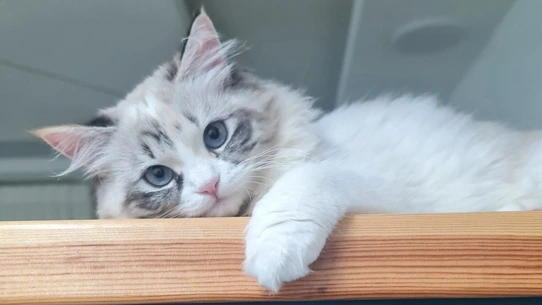
- And then there's the pet food! There's a new Kitty here, her name is Lulu and she likes food and balls!
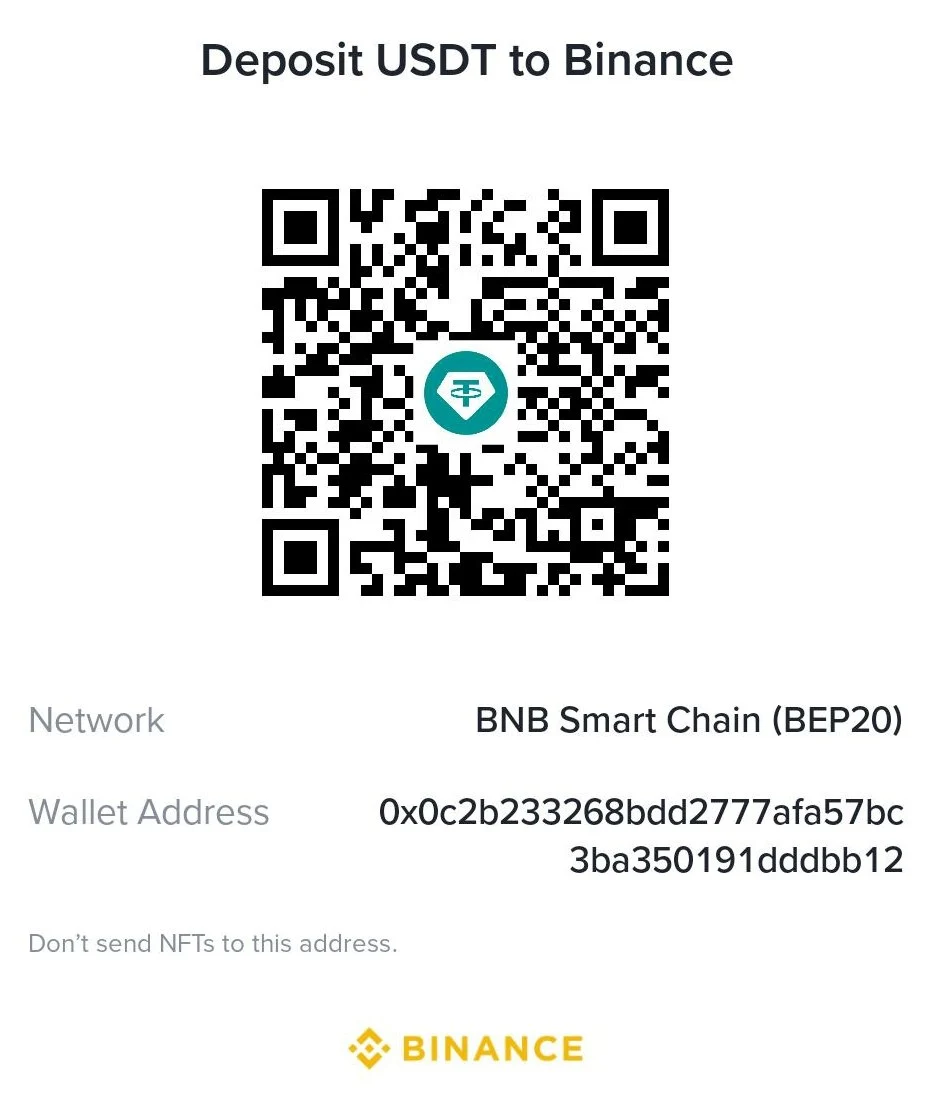
Send your support to:
0x0c2b233268bdd2777afa57bc3ba350191dddbb12
Every contribution, no matter how small, helps us continue developing professional tools for the RF community.
DISCLAIMER: This software and tutorial are for educational and scientific purposes only. Khanfar RSA is a tool designed for receiving publicly accessible radio signals. I do not condone or encourage the interception of private, encrypted, or unauthorized communications. Users are solely responsible for complying with their local radio regulations (e.g., FCC in the US, Ofcom in the UK). This software is provided "AS IS" without any warranties.